Get your Black Friday deal today! Avail now! 💥

How to Use Guided Execution in HubSpot

Guided execution in HubSpot Sales Hub is designed to help sales representatives focus on the right tasks at the right time. Inside the Sales Workspace, HubSpot analyzes CRM activity and suggests actions that help move deals forward. These suggestions can include following up with prospects, responding to email engagement, completing tasks, or updating deal information. Instead of reviewing multiple records manually, the system highlights activities that require immediate attention.

Table of Contents

Guided execution helps sales teams stay productive and ensures that important opportunities are not overlooked.

This guide explains how to access guided execution inside HubSpot and how to use it effectively in your daily sales workflow.

Step 1: Log in to Your HubSpot Account

Start by signing in to your HubSpot account.

  1. Open your browser and visit hubspot.com.
  2. Click Log In in the top navigation.
  3. Enter your registered email address and password.
  4. After logging in, you will arrive at the HubSpot dashboard.
    HubSpot dashboard after login for Sales Workspace access

From the dashboard, you can access all CRM and sales tools.

Step 2: Open the Sales Workspace

Guided execution is available inside the Sales Workspace.

To access it:

  • Navigate to the top navigation bar.
  • Click Sales.
  • Select Sales Workspace from the dropdown menu.
    HubSpot Sales menu with Sales Workspace option highlighted

The workspace organizes sales activities including tasks, sequences, and recommended actions.

Step 3: Locate the Guided Execution Section

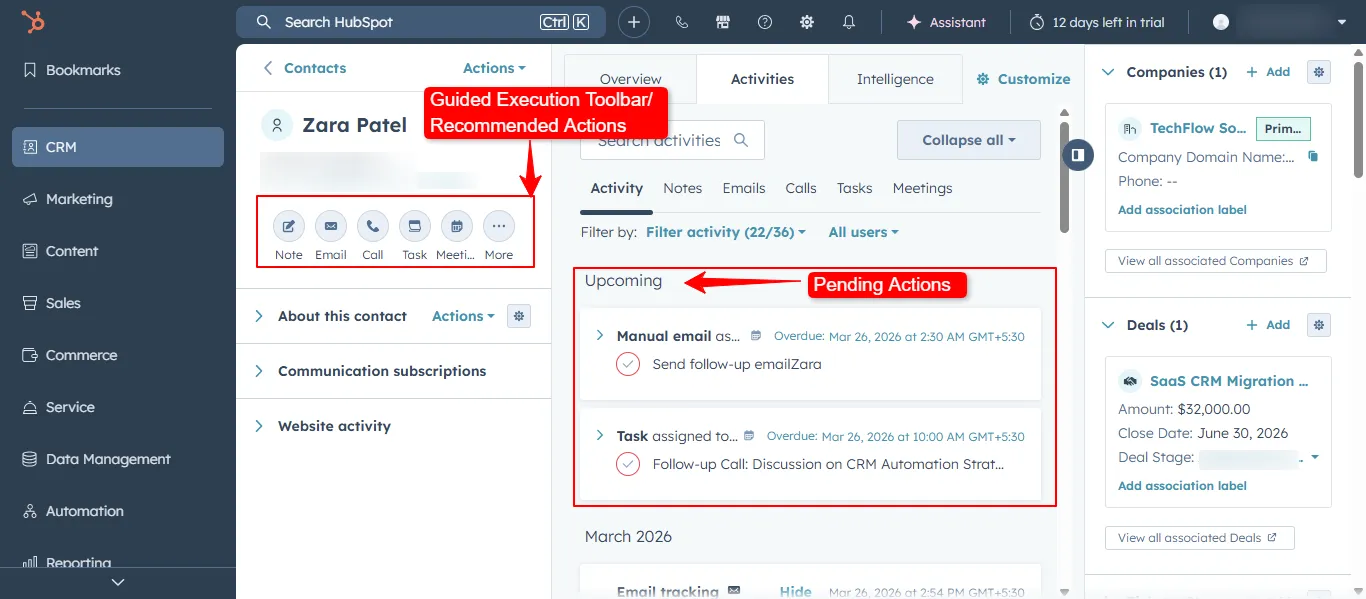
Inside the Sales Workspace, you will find the Guided Execution panel.

This section displays recommended actions based on CRM data and recent prospective activity.

Examples of recommended actions may include:

  • Follow up with a lead who recently opened an email
  • Contact a prospect who scheduled a meeting
  • Update a deal that has not progressed recently
  • Complete overdue tasks
  • Review of new contact engagement

HubSpot guided execution panel with recommended sales actions
These suggestions help representatives identify which actions should be completed next.

Step 4: Review Recommended Actions

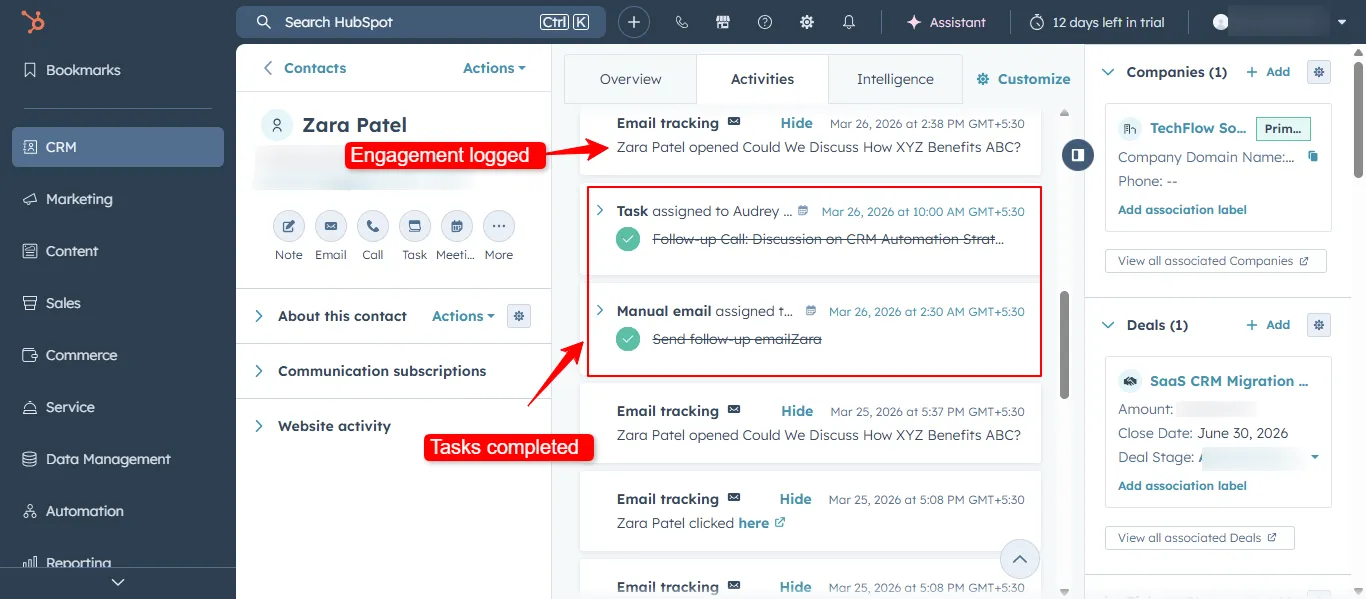
Each recommendation inside the guided execution panel contains information about the contact or deal that requires attention.

Reviewing a recommendation:
  1. Click on the suggested action.
  2. HubSpot will open associated contact, company, or deal record.
  3. Review the details and activity history.
  4. Take the recommended action such as sending an email or making a call.
    HubSpot guided execution contact record with recommended action

This process helps sales representatives respond quickly to prospective activity.

Step 5: Complete Actions Directly from the Workspace

HubSpot allows you to complete many actions directly within the guided execution interface.

Common actions include:
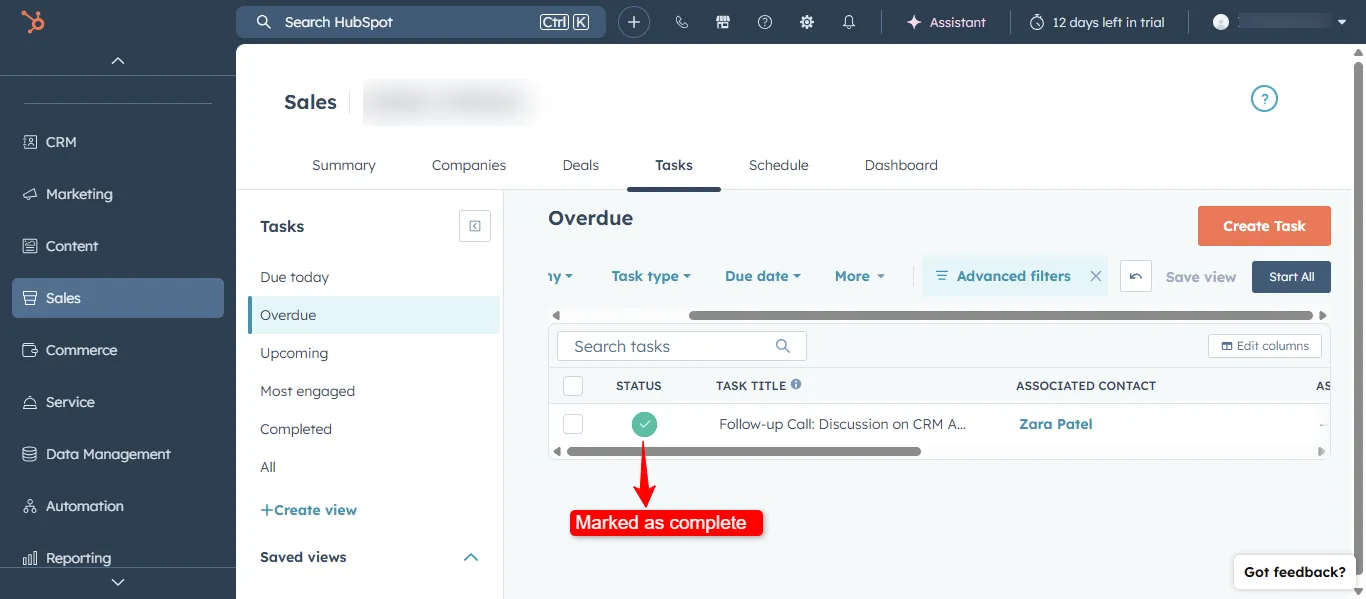
Once the action is completed, HubSpot automatically removes it from the guided execution list and updates the CRM record.

This ensures that the workspace always displays the next most relevant activity.

Step 6: Use Guided Execution to Prioritize Daily Work

Guided execution helps sales teams stay organized by prioritizing important tasks.

Instead of reviewing hundreds of contacts or deals, representatives can focus on actions that HubSpot identifies as high priority.

Typical daily workflow using guided execution may include:

  • Open the Sales Workspace at the start of the day.
  • Review recommended actions.
  • Complete follow ups and outreach tasks.
  • Update deal records after conversations.
  • Continue working through suggested actions until the list is complete.

This approach keeps sales activity structured and consistent.

Best Practices for Using Guided Execution

To get the most value from guided execution in HubSpot:

  • Check the Sales Workspace regularly throughout the day
  • Complete recommended actions quickly when prospects engage
  • Keep contact and deal records updated so recommendations remain accurate
  • Combine guided execution with task queues and sequences
  • Use workflows to automate follow up actions

Conclusion

Guided execution in HubSpot helps sales teams stay focused on the activities that matter most. By analyzing CRM data and prospect engagement, the system highlights actions that move deals forward.

Instead of manually reviewing contacts and deals, representatives can rely on the Sales Workspace to guide their daily workflow. This improves response time, ensures consistent follow ups, and helps teams maintain an organized sales process inside HubSpot.

comment icon

Frequently asked questions (FAQ)

Task queues in HubSpot are designed to help sales teams’ complete tasks in a structured and focused way. Instead of opening tasks one by one from different records, users can go through them in a guided sequence. This reduces distractions and improves overall productivity. Task queues are especially useful for repetitive workflows like follow-ups or outreach. They ensure that no important task is missed during daily operations.

Task queues improve productivity by allowing sales reps to focus on one task at a time without switching between tabs or records. This structured workflow helps teams complete more tasks in less time. It also reduces manual effort and speeds up response times for leads. By organizing tasks into queues, teams can prioritize better and maintain consistent activity levels. Over time, this leads to better pipeline movement and higher conversions.

Yes, task queues can be partially automated using HubSpot workflows. You can automatically create tasks based on triggers like form submissions, deal stage changes, or email interactions. These tasks can then be assigned to specific users and added to queues for execution. Automation helps reduce manual task creation and ensures consistency in workflows. However, managing and organizing queues still requires proper setup and planning.

To manage task queues effectively, it is important to keep them specific and aligned with your workflow. Avoid mixing different types of tasks in a single queue, as it can confuse users. Use clear naming conventions so team members can easily understand the purpose of each queue. Regularly review and clean up tasks to avoid duplication or clutter. Also, ensure tasks are prioritized correctly so reps focus on high-impact actions first.

Task queues may not work properly due to poor organization or incorrect setup. Common issues include unclear naming, duplicate tasks, or lack of prioritization. Sometimes, reps may skip tasks if workflows are not standardized. Permissions or incorrect task assignments can also create problems. Reviewing your setup and aligning queues with your sales process can help resolve most issues

Collaboration