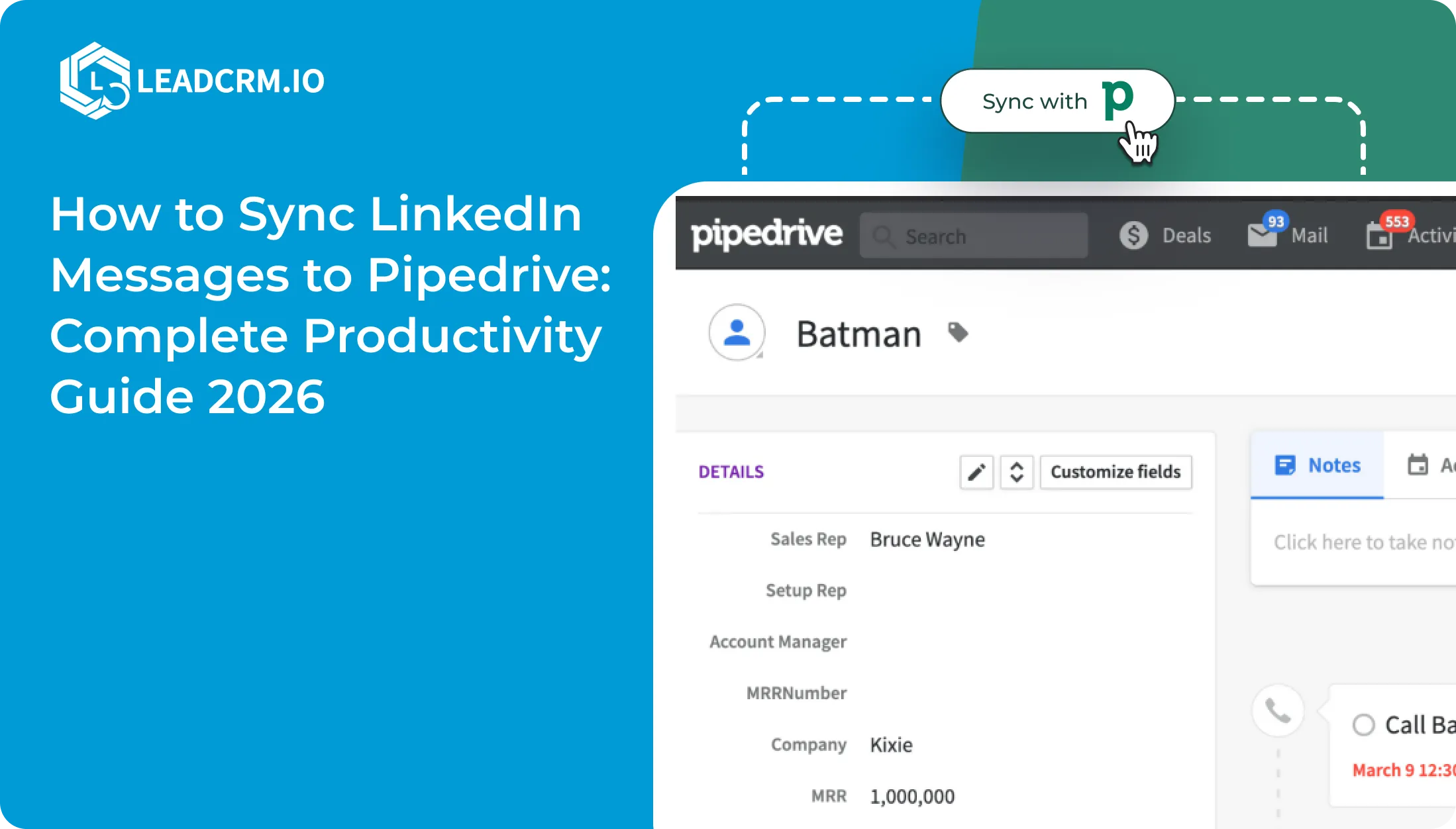
A useful LinkedIn conversation should not disappear into the inbox of the rep who happened to start it. When a prospect asks a question, names a colleague, or agrees to a meeting, that context belongs beside the Pipedrive person and the deal the team will work next.
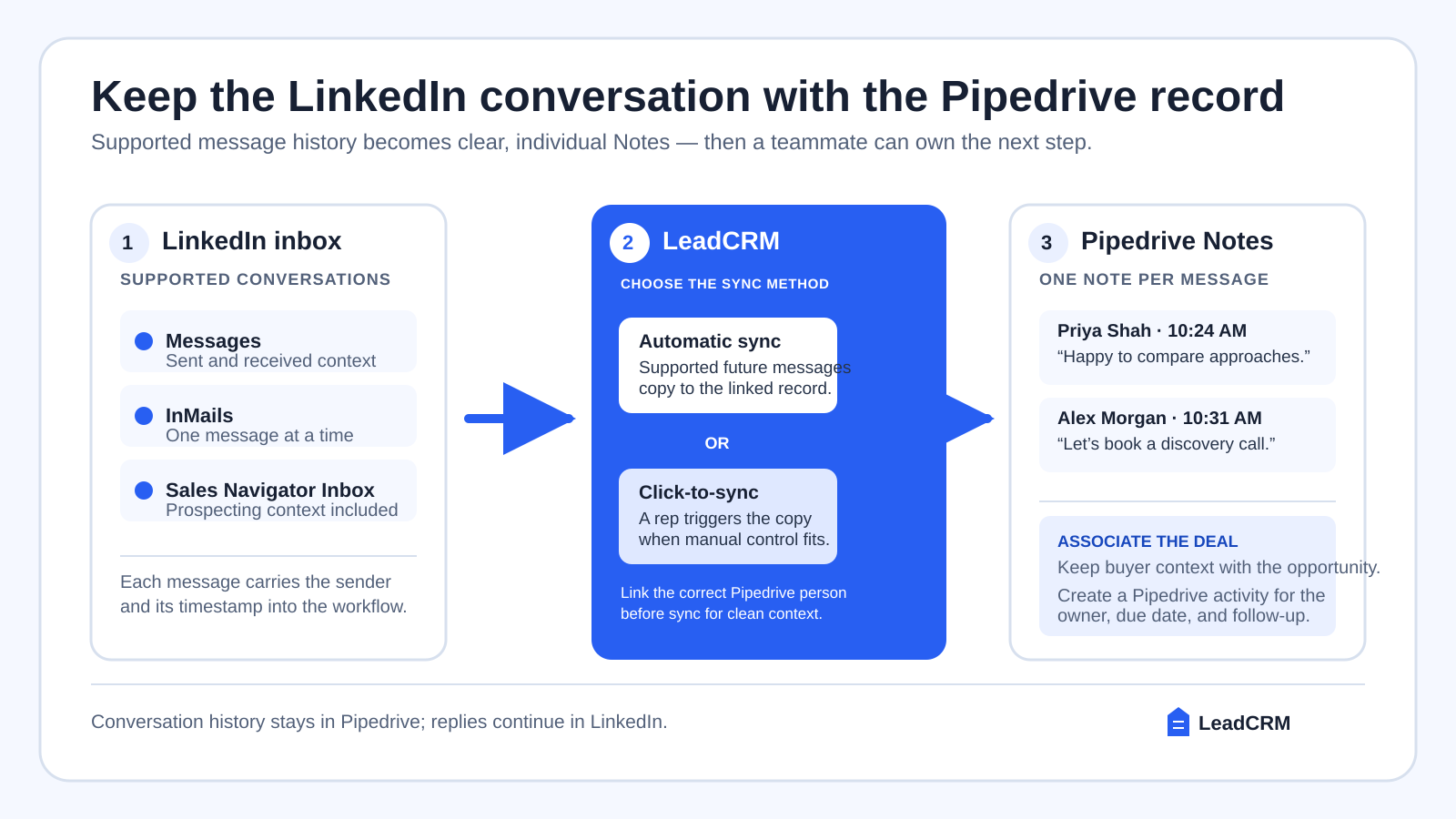
Short answer: Connect Pipedrive in LeadCRM, configure the fields your team wants to write, link the LinkedIn profile to the correct Pipedrive person, and sync the conversation. LeadCRM syncs historical Messages, InMails, and Sales Navigator Inbox messages. Each message is saved as an individual Pipedrive Note with its sender and timestamp, and can be associated with a deal. After setup, supported future messages sync automatically. Reps can also use the optional click-to-sync control when they want to trigger synchronization manually.
Can LinkedIn messages be copied to Pipedrive automatically?
Yes. LeadCRM can automatically copy supported LinkedIn Messages, InMails, and Sales Navigator Inbox messages to the linked Pipedrive record after the profile and Pipedrive connection are configured. Each synced message is saved as a separate Pipedrive Note with the sender and timestamp retained.
LeadCRM also provides an optional click-to-sync control when a rep wants to trigger the copy manually. The automatic workflow does not copy group messages or attachments, and reps continue replying on LinkedIn rather than from Pipedrive.
Do Pipedrive and LinkedIn have a native integration?
Pipedrive and LinkedIn do not connect directly by default. To sync LinkedIn messages, users need a connector such as LeadCRM or another documented integration workflow.
Explore the complete LinkedIn-to-Pipedrive workflow for profile capture, enrichment, deals, and Sales Navigator lead intake.
Why LinkedIn context goes missing in Pipedrive
Most teams do not lose a deal because they lack a CRM record. They lose the thread between prospecting and follow-up. One rep has a helpful LinkedIn exchange, another owns the deal, and Pipedrive has only a thin note such as “interested”. The next person cannot see what was asked, what was offered, or why the conversation stalled.
Copying messages into a CRM by hand seems harmless on a good day. In practice, it creates gaps when a rep is busy, makes the record depend on one person’s memory, and often leaves the team with no timestamped history when ownership changes. The fix is not a larger pile of notes. It is a repeatable path that links the right profile, preserves the conversation in the right place, and creates a clear next action.
LeadCRM fills that connector role while Pipedrive stays the operating CRM for people, organizations, deals, activities, and follow-up. The objective is practical: retain the conversation that explains the opportunity without asking reps to reconstruct it later.
What message sync puts in Pipedrive
LeadCRM writes every synced message to Pipedrive Notes. A conversation is not compressed into a single summary. Each message receives its own Note, with the sender and timestamp retained. When a message relates to an opportunity, associate it with the relevant Pipedrive deal so the buyer context is visible beside the pipeline work.
This matters at handoff. The incoming rep can open the person or deal, read what the prospect actually said, and continue the process without waiting for a verbal update. A Note documents the exchange. A Pipedrive activity documents the next move. Use both: preserve the source context, then assign the call, email, demo, or research task with an owner and due date.
Replies stay on LinkedIn. LeadCRM supports two-way synchronization for connected CRM work-management data such as tasks, deals, and notes. It does not turn Pipedrive into a LinkedIn inbox. Reps reply on LinkedIn, while Pipedrive holds the shared record of the conversation and the next action.
Supported LinkedIn message types and limits
| Message type or behavior | How the Pipedrive workflow behaves |
|---|---|
| Messages | Sync historical messages, then select automatic future-message sync or use the optional click-to-sync control. |
| InMails | Sync through the same Pipedrive Notes workflow. |
| Sales Navigator Inbox | Sync message context into Pipedrive Notes. |
| Connection-request content | Sync after the invitation is accepted, when its content becomes available as a message. |
| Group messages | Not supported. |
| Attachments | Not supported in message sync. |
| Replying from Pipedrive | Not supported. Continue the conversation in LinkedIn. |
The connection-request rule is worth adding to the team playbook. A rep can add the LinkedIn profile before the invitation is accepted, but the invitation text only syncs when it appears in the message inbox after acceptance. This keeps the Pipedrive record aligned with the actual message history rather than treating a pending invite as a conversation.
Set matching and mapping rules before the first conversation sync
Message sync starts with identity. The right message on the wrong Pipedrive person is worse than a missing message because it misleads the next owner. LeadCRM gives reps two ways to connect the LinkedIn profile with the correct Pipedrive record. Use Search & Link when a rep should choose the person manually. Use strict LinkedIn URL-only matching when the team wants the LinkedIn URL to be the deciding identifier.
Then set the data controls. LeadCRM keeps Contact, Company, and Enriched Data mappings separate, so the team can decide where LinkedIn profile details, company context, and enrichment output belong. Map one LinkedIn field to one intended Pipedrive field. Mapping several source fields into the same destination field causes later writes to overwrite earlier values. For required fields, use a default value where the Pipedrive setup needs one. Multi-option dropdown fields are not available for mapping.
A good first configuration uses a small set of stable fields: LinkedIn profile URL, job title, company information, and any custom fields the team already uses for segmentation. Build the initial mapping around information that helps a teammate identify and follow up with the person. Add enrichment mappings only when they have a clear place in the Pipedrive process.
Dedicated tutorial
How to connect LinkedIn and Pipedrive with LeadCRM
Pipedrive and LinkedIn do not connect directly by default. LeadCRM provides the connection through its Chrome extension and Pipedrive integration. After you authorize Pipedrive, LeadCRM appears while you browse LinkedIn or Sales Navigator, allowing you to link profiles, sync supported messages, and carry CRM context into the person and deal record.
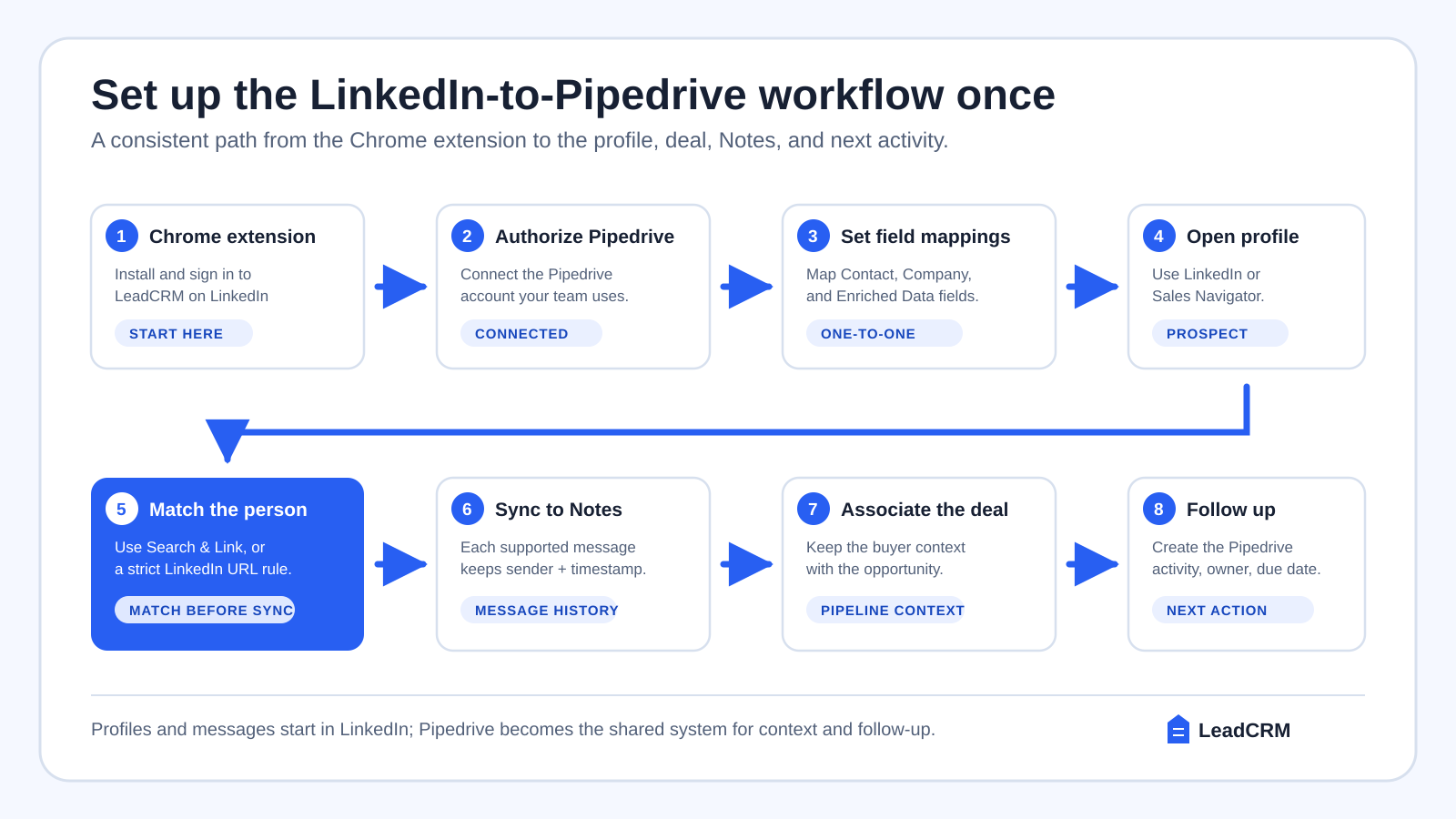
Set up the connection once, then follow the same sequence whenever a LinkedIn exchange becomes an opportunity your Pipedrive team needs to work.
1. Prepare LeadCRM, the Chrome extension, and Pipedrive access
Start with a LeadCRM account, the LeadCRM Chrome extension, and Pipedrive permissions that allow you to install and authorize apps. Install the extension, sign in using the same LeadCRM account, and pin it in Chrome if the team wants quick access. LeadCRM then appears while you browse LinkedIn and Sales Navigator.
Before connecting, decide who will own the integration and which Pipedrive fields should receive LinkedIn data. Agree on a simple record policy: which Pipedrive person is authoritative, when a new person should be created, and whether the team uses strict URL-only matching or manual selection for uncertain records.
2. Connect the Pipedrive account your team already uses
In LeadCRM, open Dashboard → User Settings → Integrations → Pipedrive, select Connect, sign in to Pipedrive, choose the correct portal, and grant access. The connection is ready when CRM Settings shows Pipedrive as Connected.
Connect the production Pipedrive account only when the owner understands the mapping and matching policy. A short test with a known internal record is useful for learning the workflow, but the settings should be designed for the team’s real records from the start.

3. Build one-to-one Contact and Company field mappings
Open CRM Settings → Field Mappings. The left side lists available LinkedIn fields; the right side lists the Pipedrive fields that can receive them. Create one-to-one Contact mappings and save them. Then repeat the process for Company mappings. LeadCRM also keeps Enriched Data mappings separate, which lets the team control how enrichment updates Pipedrive without mixing it with basic profile capture.
Use this step to prevent the most common data-quality problem: a generic destination field receiving several different types of information. A title should map to the title field. A LinkedIn URL should map to a dedicated URL field. If the team wants a visible reference for sales reps, add that field to the LinkedIn overlay rather than repurposing another Pipedrive property.

4. Open the prospect and link the correct Pipedrive person
Open the prospect’s LinkedIn profile or Sales Navigator record. LeadCRM shows an add prompt for a new person and the matching record when the person already exists in Pipedrive. Use Search & Link when you want to select the correct record yourself. If your policy is URL matching only, enable strict LinkedIn URL-only matching.
Do not treat this as a minor housekeeping step. Link before you sync. It is how the conversation, person, and account context stay together. If the exchange belongs to an active opportunity, associate the person with the correct Pipedrive deal now. This gives the rest of the team one place to inspect the buyer’s message history and pipeline status.
5. Sync the historical conversation into Pipedrive Notes
For the linked record, sync the historical Messages, InMails, or Sales Navigator Inbox conversation. LeadCRM writes one Pipedrive Note per message and retains the sender and timestamp. The Notes make the order of the exchange readable when a teammate reviews the record later.
Choose the future-sync behavior that suits the workflow. Automatic sync keeps supported new messages current for the profiles the team manages. Click-to-sync gives a rep manual control when that is a better fit for the account. Both options exist so the team can use a consistent approach instead of relying on ad hoc copying.
Connection requests have one condition: the invitation text syncs after the prospect accepts the request, when it becomes available in the message box.
6. Associate the deal and assign the next activity
When the conversation relates to an active opportunity, make sure the synced context is associated with the relevant Pipedrive deal. Then read the Notes and create the next Pipedrive activity. Give it an owner, a due date, and a clear action such as “send case study,” “schedule discovery,” or “follow up after conference.”
That separation is useful. The synced Note stays an accurate record of what happened. The activity is the operational commitment. A deal owner can change, but the message context and next action remain visible to the team.
7. Use the workflow consistently across LinkedIn and Sales Navigator
Sales Navigator is useful for finding and researching prospects. LeadCRM brings the profile into the Pipedrive workflow, and Sales Navigator Inbox messages follow the same supported Notes process. Keep the roles clear: prospect in LinkedIn or Sales Navigator, link and synchronize with LeadCRM, then manage qualification, deal progress, and follow-up in Pipedrive.
Make the limits part of onboarding. Group messages and attachments do not sync. Reps do not reply from Pipedrive. They reply on LinkedIn, where the conversation started, while Pipedrive holds the shared context and work queue.
A simple team playbook for message sync
The technology works best when the team agrees on the few decisions that affect every record. A short shared playbook removes most of the ambiguity:
- Link before you sync. Confirm the Pipedrive person with Search & Link or the strict URL rule before adding profile data or messages.
- Attach context to the deal when it affects the deal. A person may have several opportunities over time. Put the conversation next to the one the team is working.
- Use Notes for history and activities for commitments. A message is evidence. A Pipedrive activity is the assigned next step.
- Choose automatic sync or click-to-sync by workflow. Document the choice so one rep’s records do not become unexpectedly different from another’s.
- Protect the mapping. Keep one-to-one field mappings and periodically review the fields that control matching, ownership, and segmentation.
For managers, the practical review is simple. Open a recent LinkedIn-sourced deal and ask: can a teammate identify the person, read the message context, see the next activity, and understand the deal stage without messaging the original rep? If the answer is yes, the workflow is doing its job.
Troubleshooting the workflow without losing context
The LinkedIn person is not the Pipedrive person you expected
Use Search & Link to select the right record. If the team uses strict LinkedIn URL-only matching, make sure the Pipedrive person has the correct LinkedIn profile URL stored in the mapped field. Do not sync message history until the right person is linked.
LinkedIn fields are showing up in the wrong place
Return to CRM Settings and review Contact, Company, and Enriched Data mappings separately. Check that each LinkedIn field has one Pipedrive destination. If the Pipedrive process requires a field that is not currently mapped, add a suitable supported destination or a default value for a required field.
The conversation is on the person but not helping the deal owner
Associate the person with the correct Pipedrive deal, then create an activity for the next action. The Notes preserve the exchange; the deal association and activity make the exchange useful to the person responsible for pipeline progress.
A rep expects an attachment or a group thread to appear
Those are not part of message sync. Keep the deal record useful by writing a concise Pipedrive Note with the missing context when needed and attach the follow-up activity. Continue LinkedIn replies from LinkedIn.
Common questions
Can I sync old LinkedIn messages to Pipedrive?
Yes. LeadCRM supports historical sync for Messages, InMails, and Sales Navigator Inbox messages. Each synced message is written as its own Pipedrive Note with sender and timestamp retained.
Do future messages sync automatically?
Yes. Choose automatic future-message sync for the profiles you want to keep current, or use the optional click-to-sync control when manual control is better for the workflow.
Are LinkedIn messages saved as Notes or activities?
They are saved as Pipedrive Notes, one Note per message. Create a separate Pipedrive activity to assign the next action.
Can synced messages be associated with a deal?
Yes. Associate the message context with the relevant Pipedrive deal so the conversation is visible where the opportunity is managed.
Can I reply to LinkedIn messages from Pipedrive?
No. Continue replies on LinkedIn. Pipedrive holds the synchronized context, deal association, and follow-up work.
Are group messages and attachments supported?
No. Group messages and attachments are not included in message sync.
Final rollout checklist
- Pipedrive is connected and CRM Settings shows the integration as Connected.
- Contact, Company, and Enriched Data mappings are reviewed separately.
- Each LinkedIn source field maps to one intended Pipedrive field.
- Search & Link or strict LinkedIn URL-only matching is documented for the team.
- The LinkedIn profile is linked to the right Pipedrive person before message sync.
- The relevant deal is associated when the conversation is opportunity-specific.
- Historical Messages, InMails, or Sales Navigator Inbox messages appear as individual Notes.
- Sender and timestamp are present on each synced Note.
- Automatic future sync or click-to-sync is selected and understood.
- Reps know that group messages, attachments, and replies from Pipedrive are not supported.
- Every real next step becomes an assigned Pipedrive activity.
Keep the LinkedIn conversation with the Pipedrive deal
LeadCRM gives Pipedrive users a practical path from a LinkedIn conversation to shared CRM context: map the data, link the right person, sync supported messages into Notes, associate the deal, and assign the next action.