Get your Black Friday deal today! Avail now! 💥

How to Schedule Meetings in HubSpot

Scheduling meetings is a critical step in most sales conversations. HubSpot makes this process easier by providing built-in meeting scheduling tools that integrate directly with your calendar. Sales representatives can share personalized scheduling links with prospects, allowing them to book a meeting based on available time slots. Once a meeting is scheduled, HubSpot automatically records it in the CRM and updates the contact activity timeline.

Table of Contents

This eliminates back and forth emails and helps teams organize meetings more efficiently.

This guide explains how to connect your calendar, create a meeting scheduling link, and schedule meetings with prospects in HubSpot.

Step 1: Connect Your Calendar to HubSpot

Before scheduling meetings, your calendar must be connected to HubSpot.

  1. Log in to your HubSpot account.
  2. Click the Settings icon in the top navigation.
  3. Navigate to General and select Calendar.
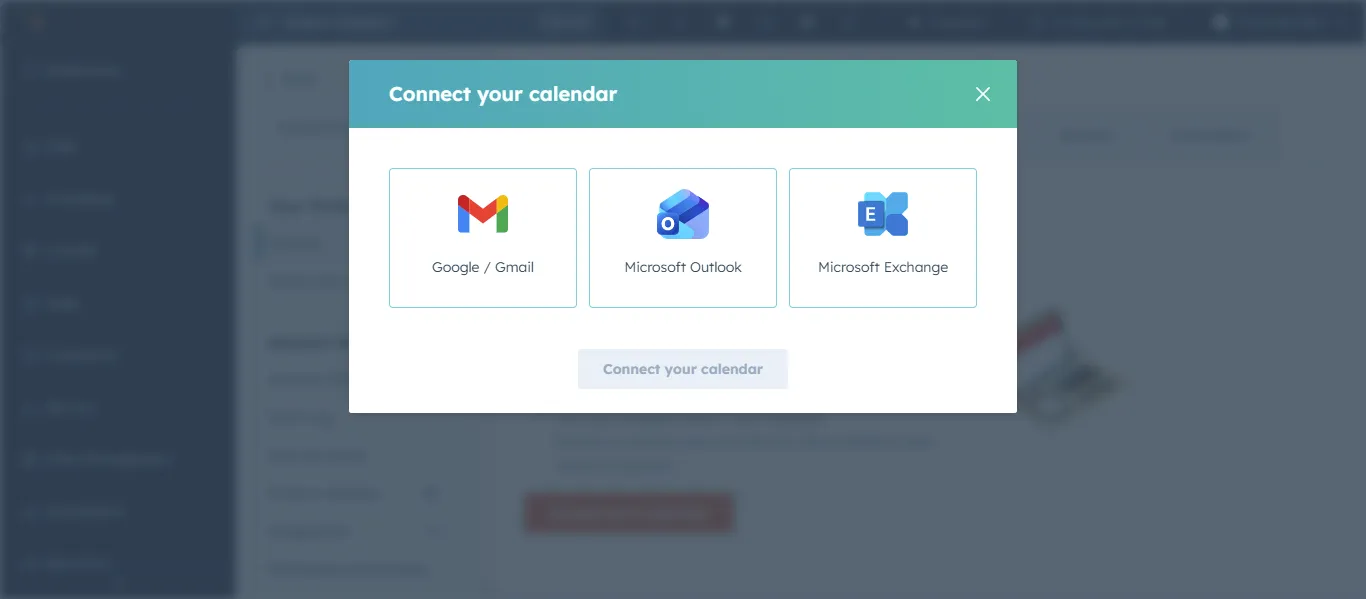
  4. Click Connect Calendar.
    HubSpot settings menu with connect calendar option
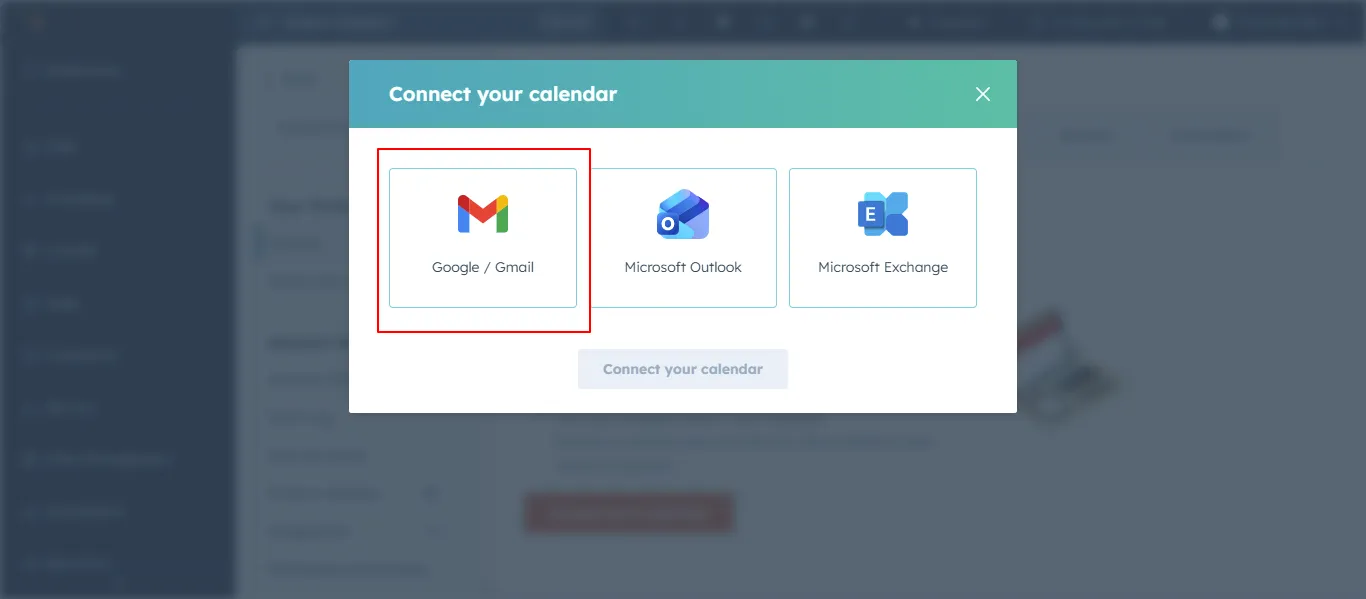
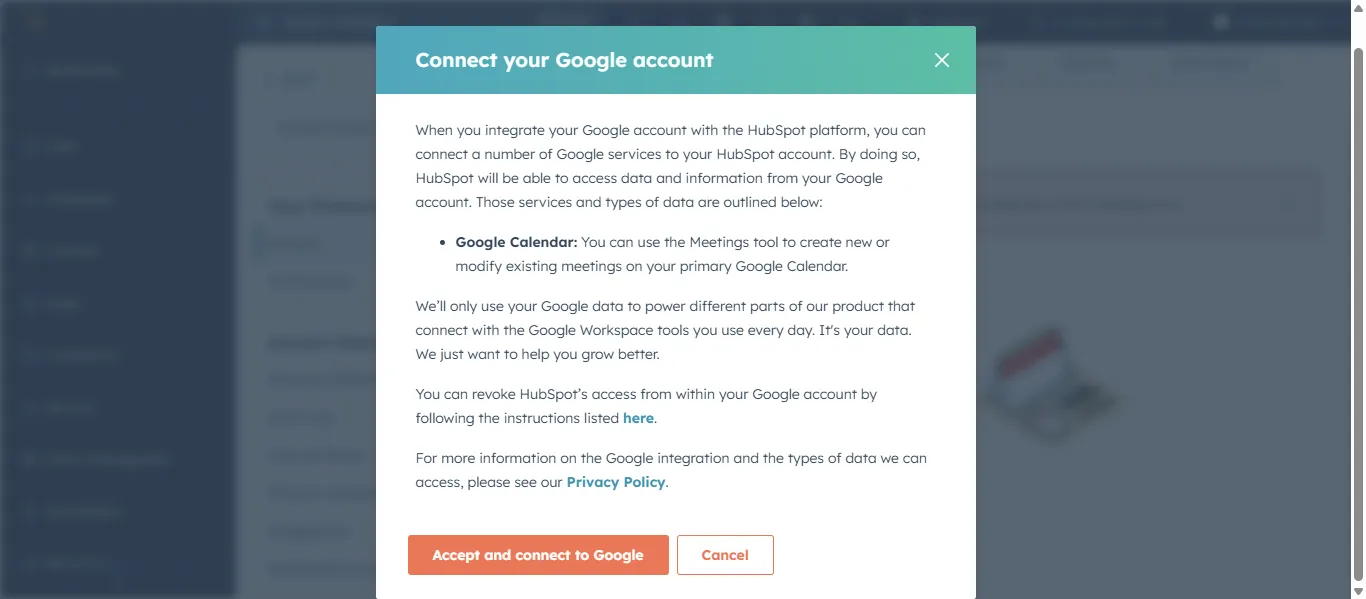
  5. Choose your calendar provider such as Google Calendar or Microsoft Outlook.
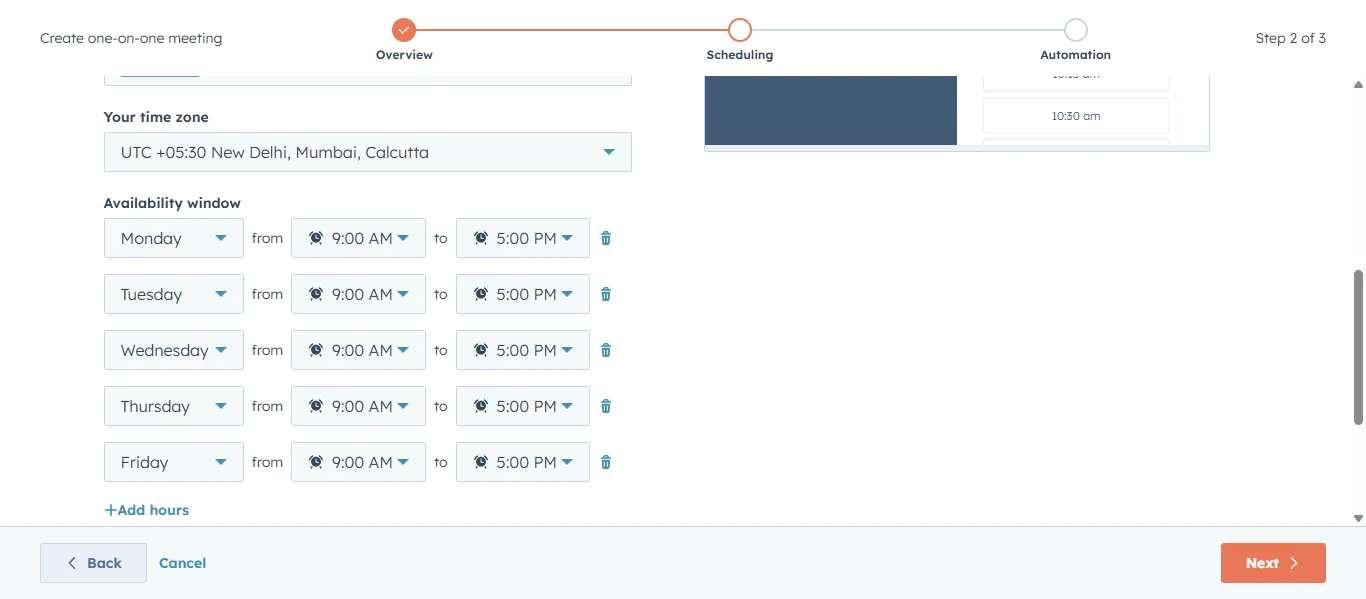
    HubSpot meeting availability working hours settings
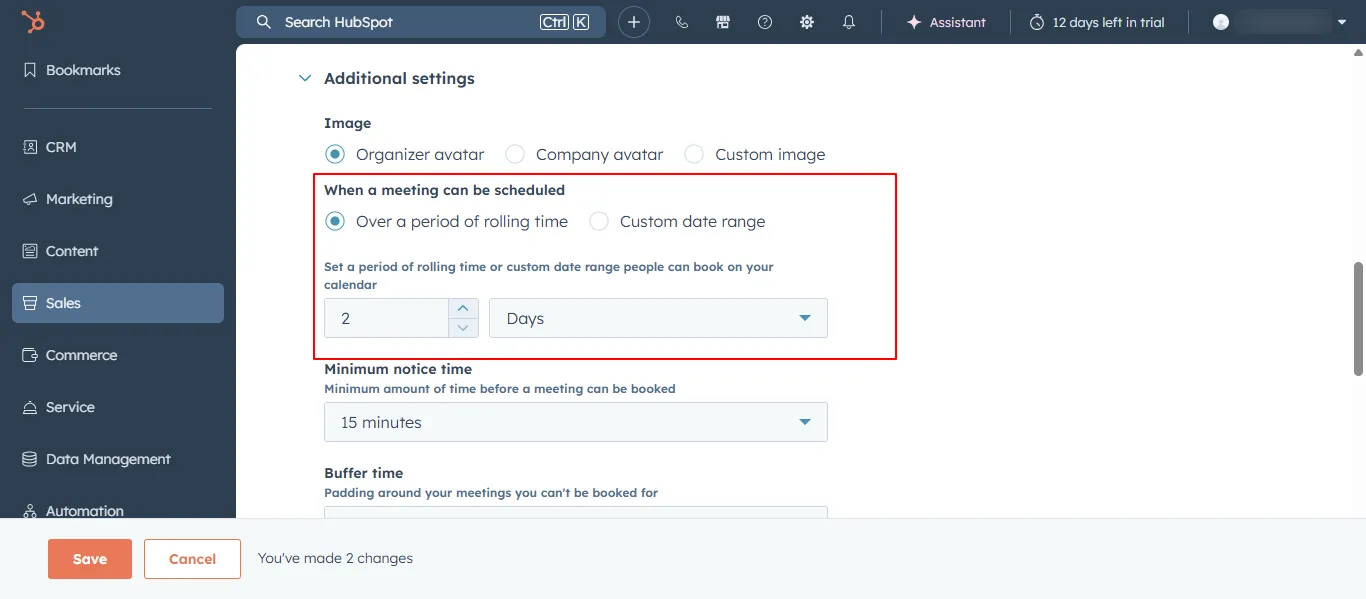
    HubSpot calendar availability and scheduling window setup
    HubSpot meetings dashboard with scheduling links list
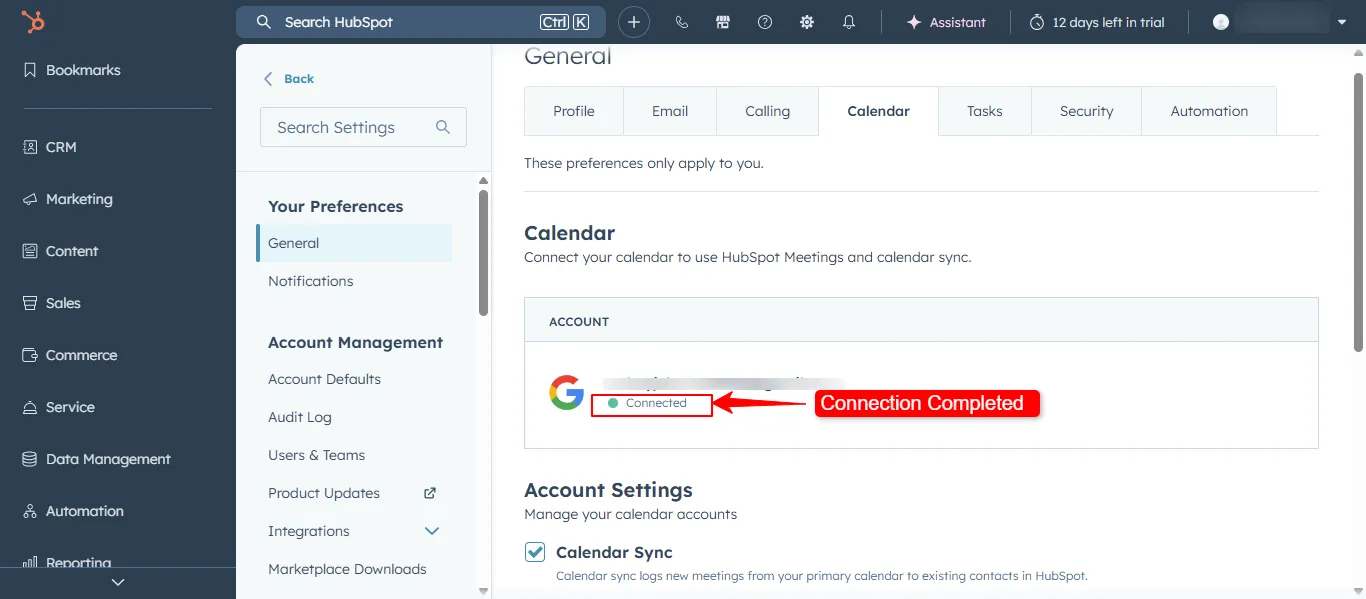
  6. Follow the authentication steps to complete the connection.
    HubSpot create meeting link button in meetings tool

Once connected, HubSpot will sync your calendar availability and prevent double bookings.
HubSpot contact timeline showing scheduled meeting activity

Step 2: Access the Meetings Tool

HubSpot provides a dedicated meetings tool for creating scheduling links.

To access it:
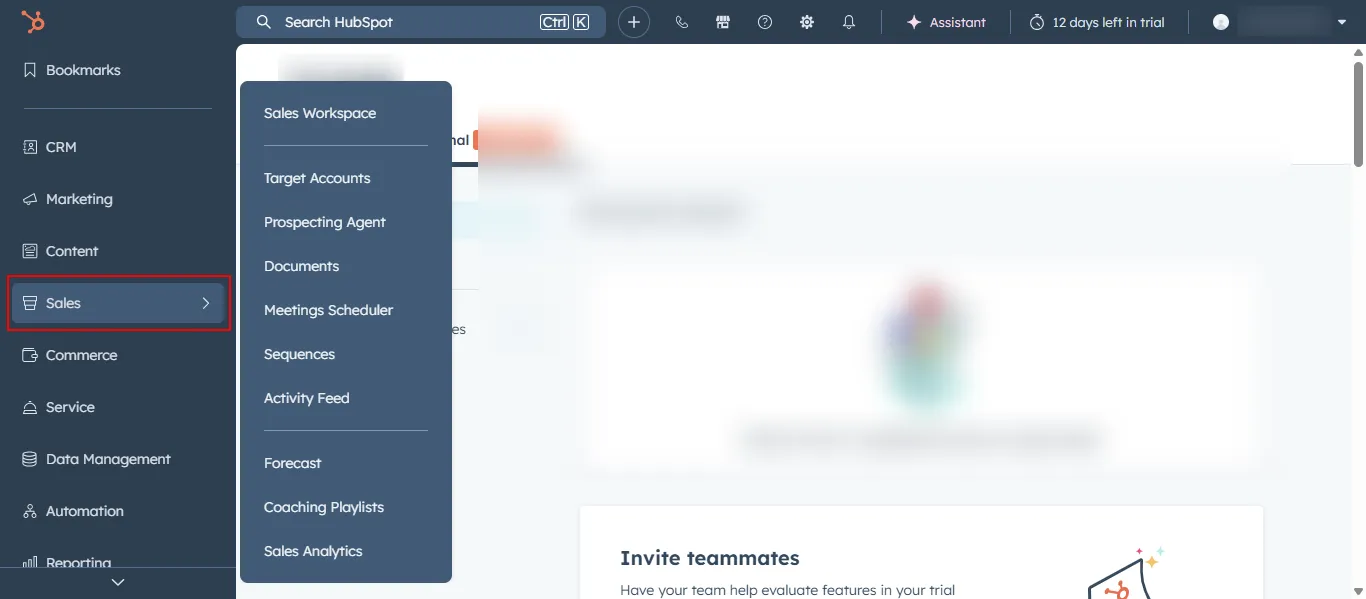
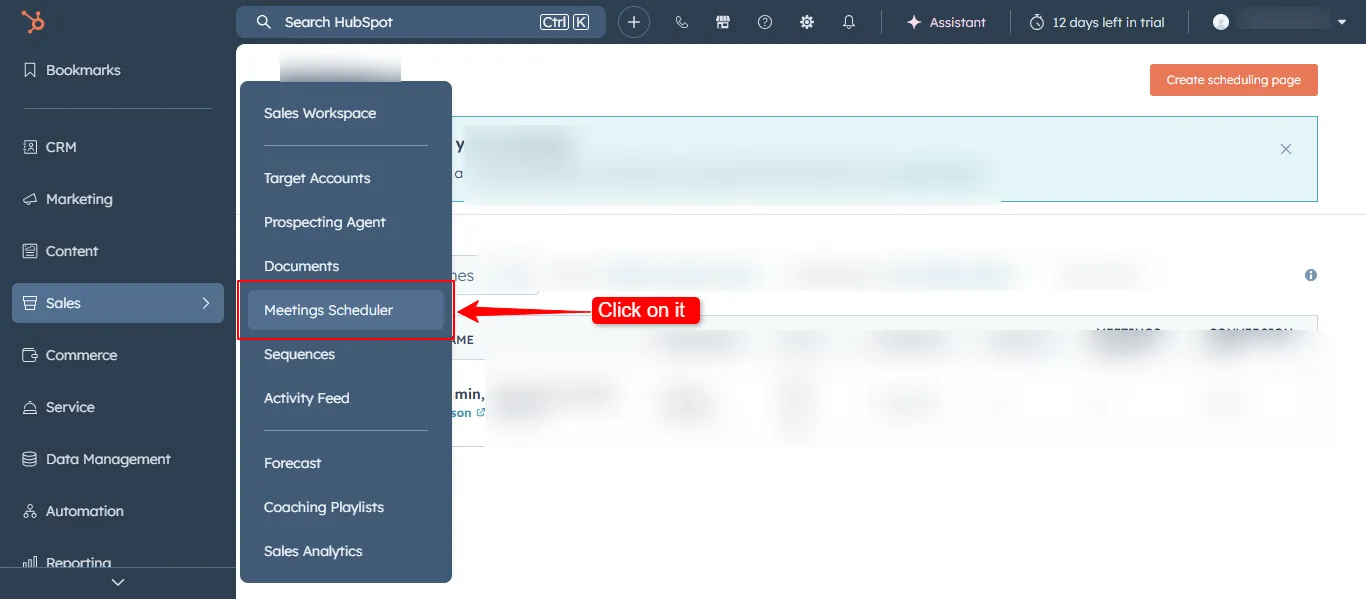
  1. Go to the Sales menu in the top navigation.
    HubSpot meetings tool interface overview screen
  2. Click Meetings.
    HubSpot top navigation showing meetings option
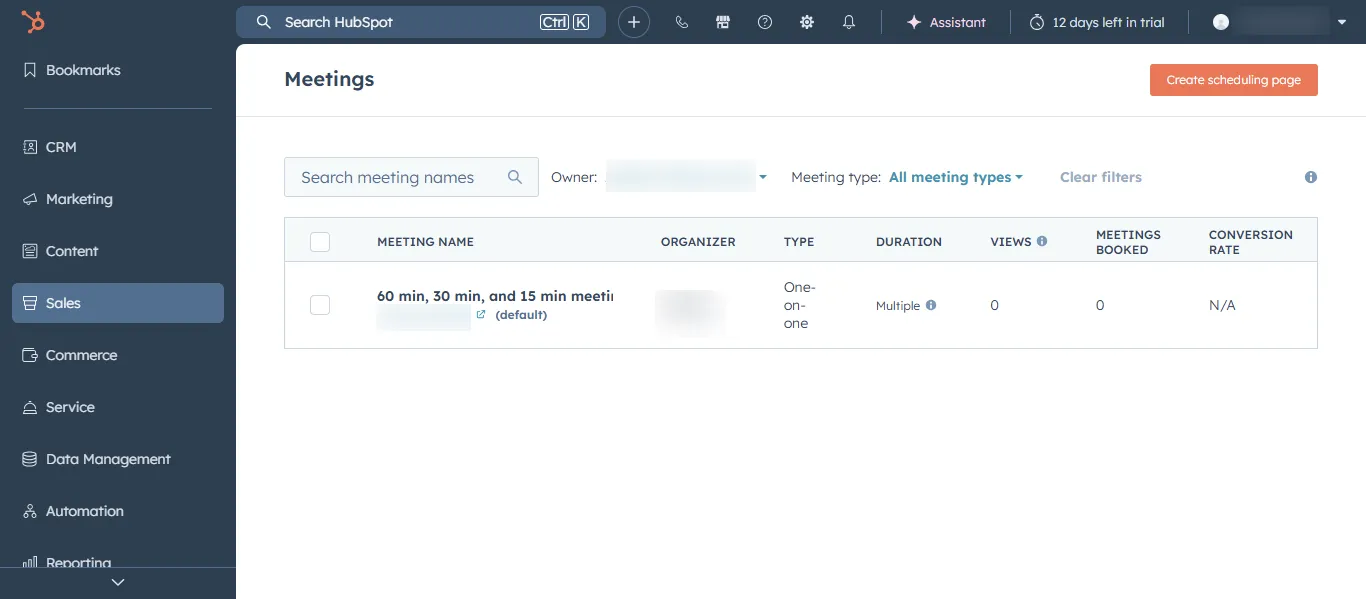
  3. The meetings dashboard will open where you can manage your scheduling links.
  4. This section allows you to create new meeting links or edit existing ones.
    HubSpot meeting booking page with available time slots

Step 3: Create a Meeting Scheduling Link

A scheduling link allows prospects to book meetings based on your availability.

To create one:
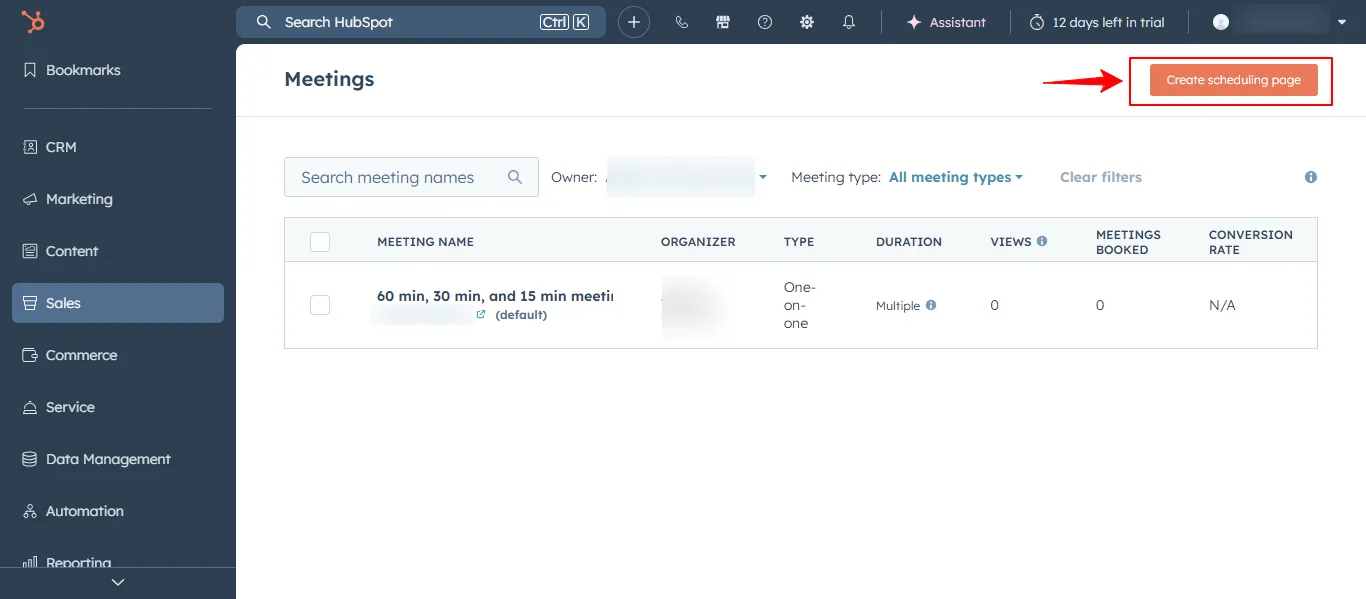
  1. Click Create Meeting Link.
    HubSpot booking notice settings in meeting setup

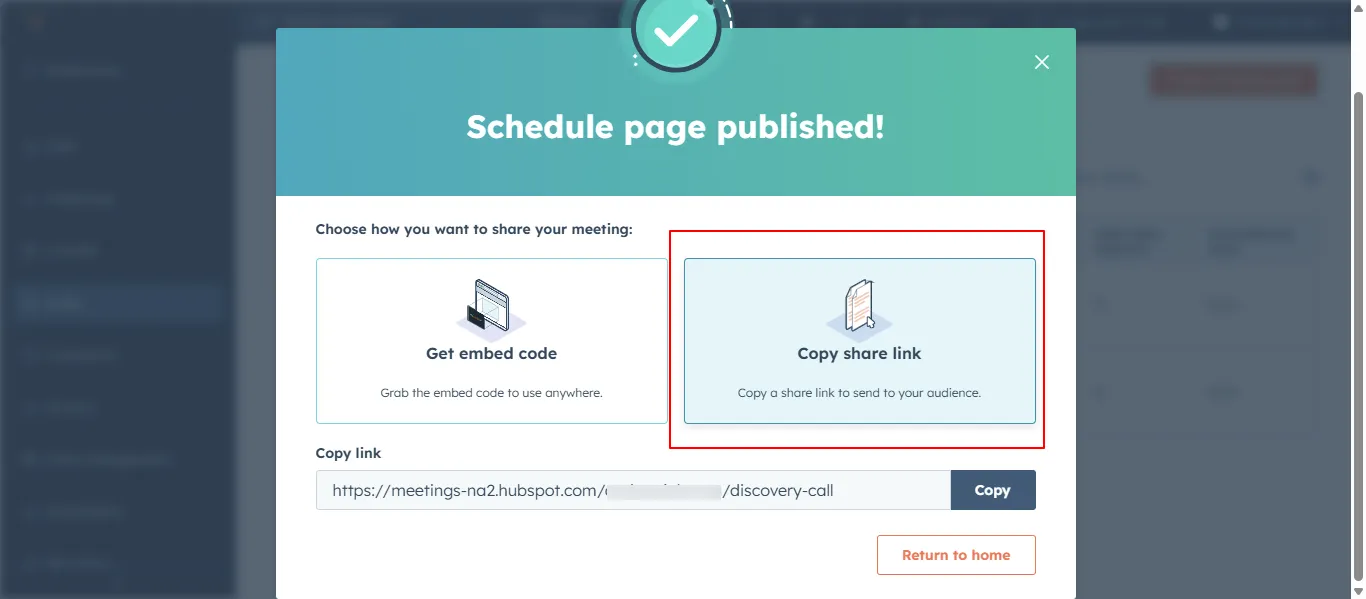
    HubSpot meeting scheduling link generated URL screen

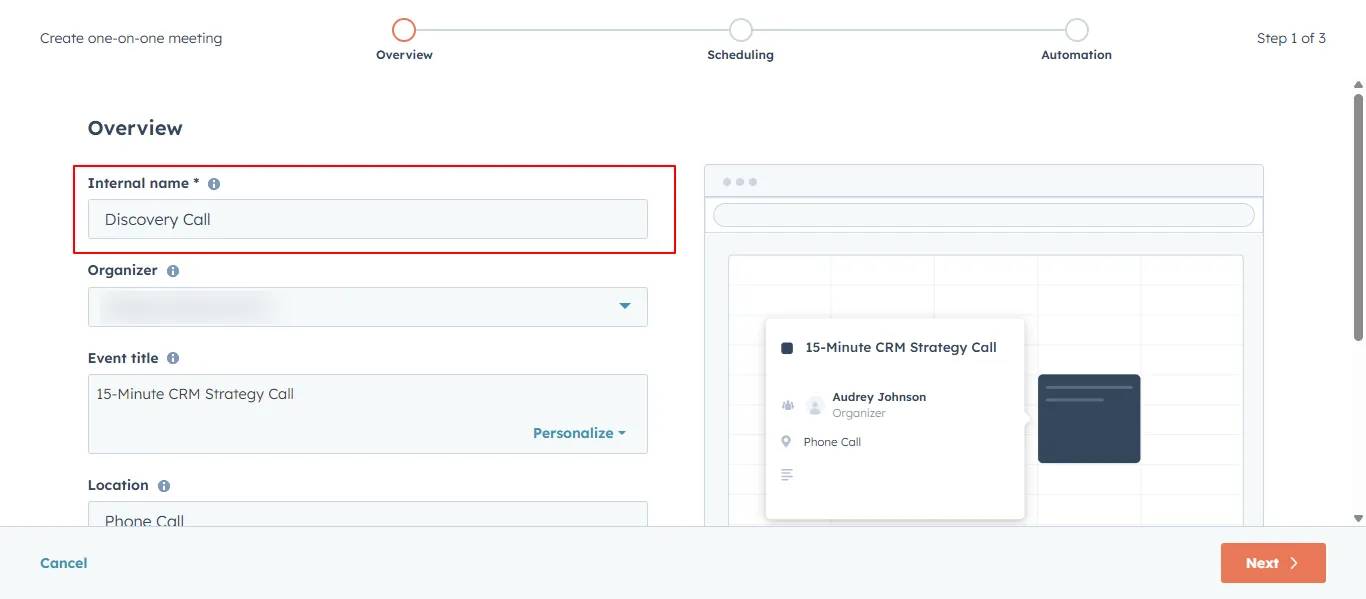
  2. Enter a meeting name.
    HubSpot meeting record with notes and activity history
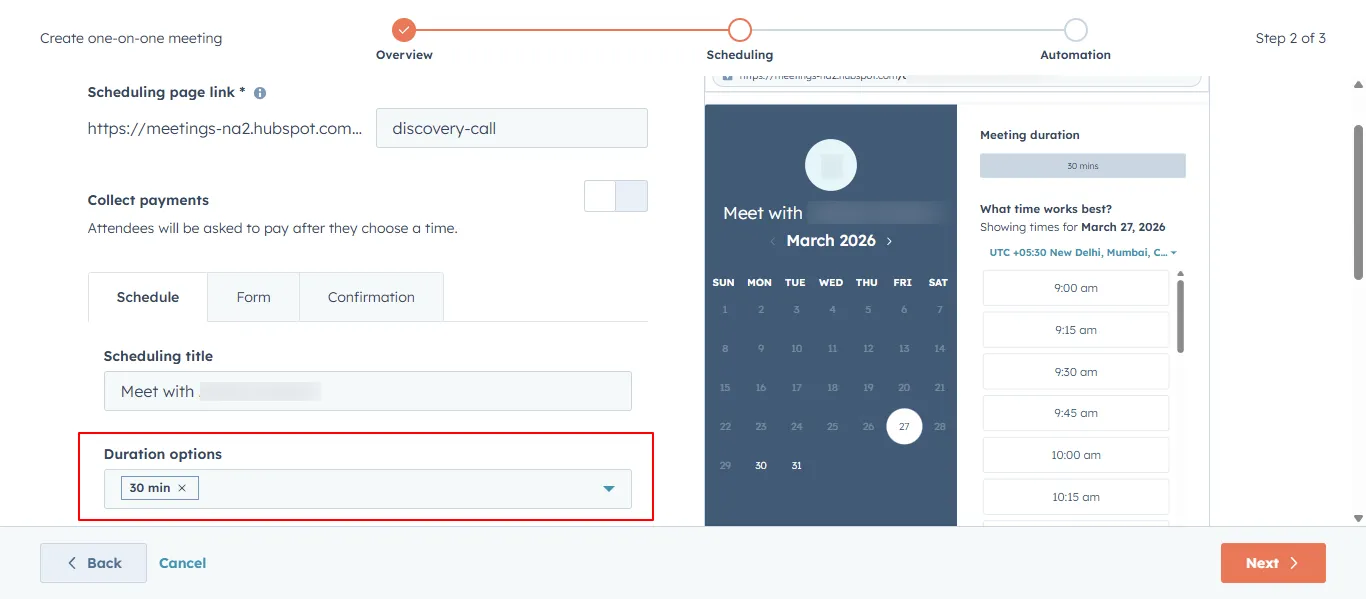
  3. Select the meeting duration for 15 minutes, 30 minutes, or 60 minutes.
    HubSpot meeting link shared via email to prospect
  4. Choose your availability window.
    HubSpot meeting link added to email for scheduling
  5. Select the connected calendar that HubSpot should check for availability.
  6. Save the meeting link.
    HubSpot connect calendar screen with provider options

HubSpot will generate a shareable URL that prospects can use to schedule meetings.

Step 4: Configure Meeting Availability

You can customize when meetings can be booked.

Within the meeting settings you can:
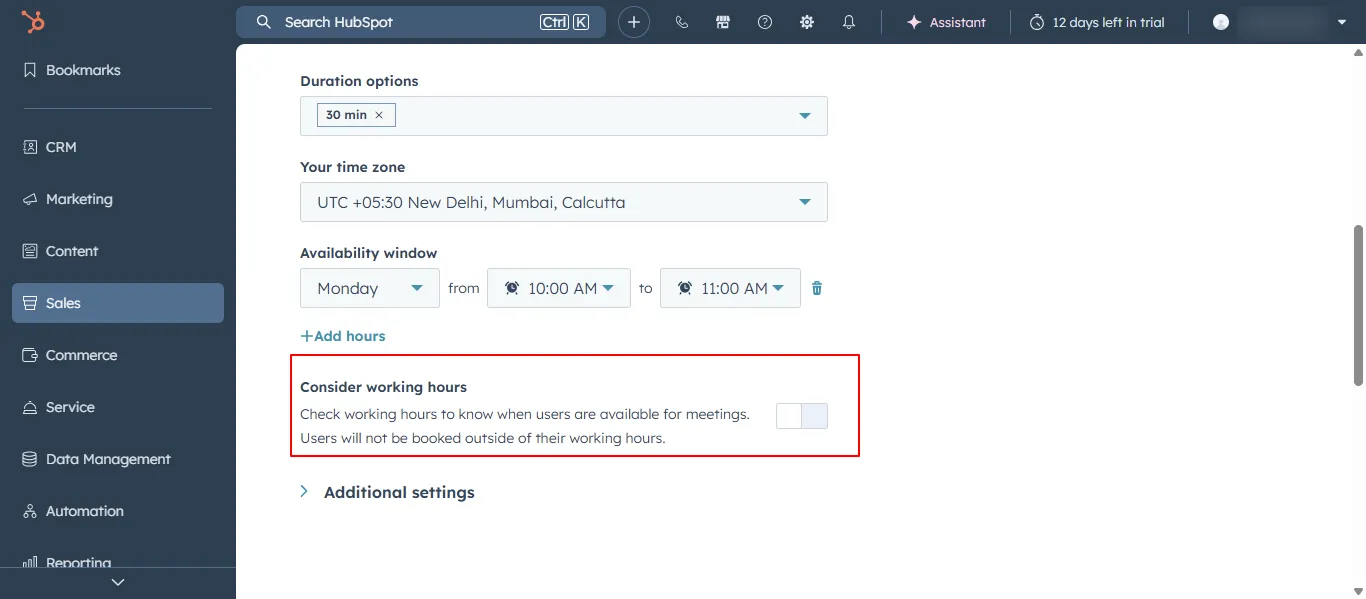
  1. Define working hours
    HubSpot working hours and availability configuration
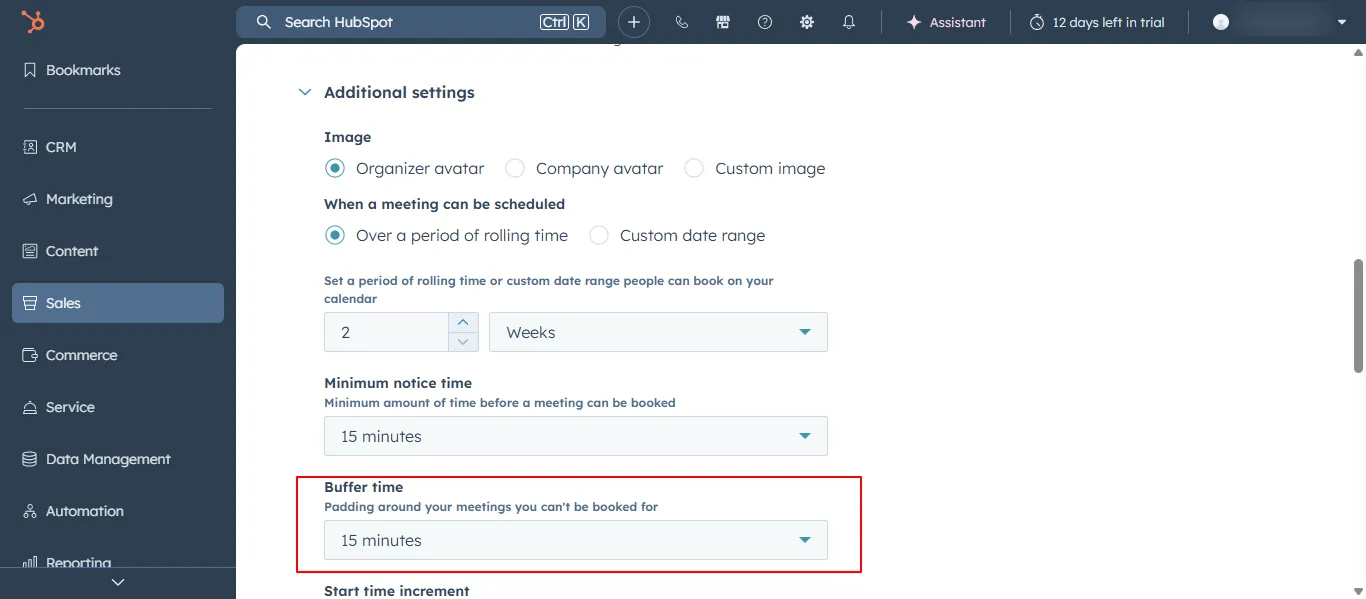
  2. Set buffer time between meetings
    HubSpot meetings dashboard with scheduled events
  3. Limit the number of meetings per day
    HubSpot meeting setup form with duration and limits
  4. Configure booking notice requirements

These settings help prevent scheduling conflicts and ensure your calendar remains manageable.

Step 5: Share Your Meeting Link with Prospects

Once your meeting link is created, you can share it with prospects.

Common ways to share meeting links include:

  • Adding the link to email outreach
  • Including it in email signatures
  • Sending it directly through HubSpot CRM emails
  • Embedding it on landing pages or websites

When a prospect clicks the link, they can choose an available time slot that works for them.

HubSpot automatically schedules the meeting and updates your calendar.
HubSpot general settings page with calendar tab open

Step 6: Track Meetings Inside HubSpot

After a meeting is booked, HubSpot records the event inside the CRM.

You can view meeting details within:
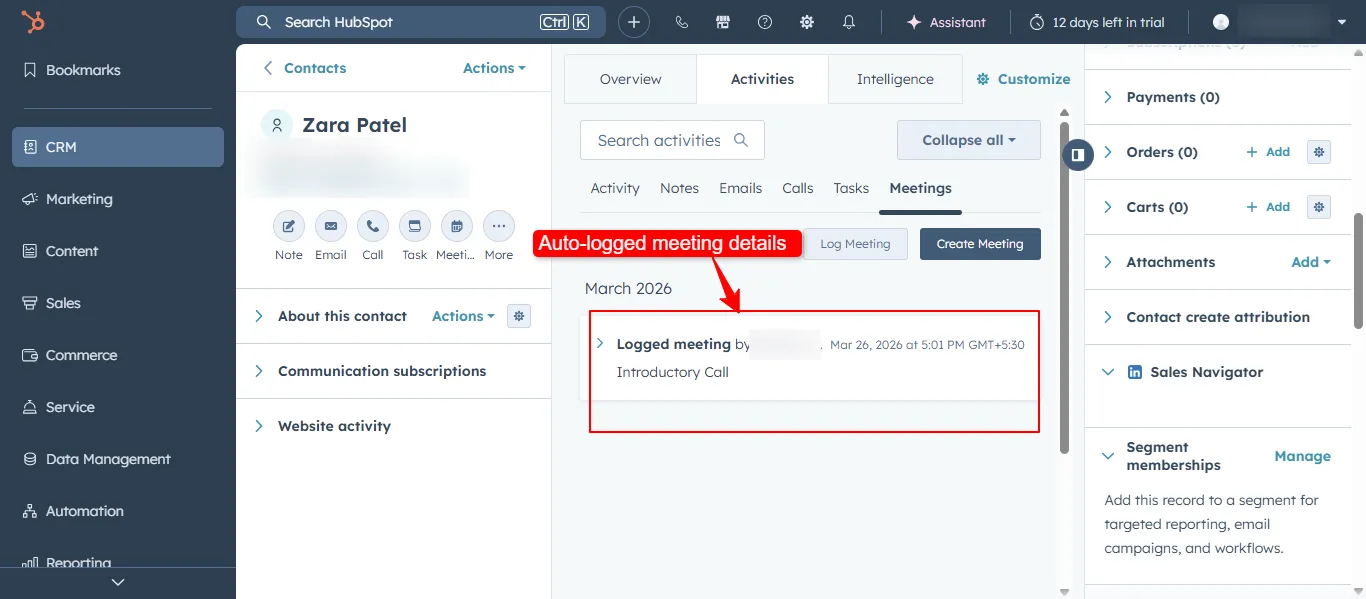
  1. The Contact activity timeline
    HubSpot CRM showing upcoming meetings list view
  2. The Meetings dashboard
  3. Associated Deal records

This allows sales teams to track scheduled meetings and review conversation history before the meeting takes place.
HubSpot deal record with meeting activity logged

Step 7: Manage Upcoming Meetings

HubSpot allows you to manage scheduled meetings directly within the CRM.

You can:

  1. View upcoming meetings
  2. Update meeting details
  3. Cancel or reschedule meetings
  4. Review notes from previous meetings

Keeping meeting records inside the CRM helps maintain accurate activity tracking across the sales pipeline.
HubSpot meeting edit screen to reschedule or update details

Best Practices for Scheduling Meetings

To improve meeting scheduling efficiency:

  • Use a clear meeting title and description
  • Offer multiple time slots for flexibility
  • Add buffer time between meetings
  • Include the meeting link in outreach emails
  • Review contact information before the meeting

Conclusion

HubSpot’s meeting scheduling tool removes the complexity of coordinating calendars and booking calls. By connecting your calendar and sharing scheduling links, prospects can easily select a time that works for them.

With automatic calendar synchronization and CRM logging, HubSpot ensures that every meeting is organized, tracked, and linked to the correct contact or deal record. This helps sales teams stay prepared and maintain efficient communication with prospects throughout the sales process.