How to Prioritize Leads in HubSpot Sales Workspace
Lead prioritization helps sales teams focus on prospects who are most likely to convert. In HubSpot Sales Workspace, you can review leads, tasks, and engagement activity from a single dashboard and use that data to identify high-intent prospects quickly.
Table of Contents
By analyzing engagement signals, deal stages, and task activity, teams can avoid wasting time on low-intent leads and instead respond fast to the most promising opportunities. This guide explains how to review leads, analyze activity, and prioritize prospects inside HubSpot Sales Workspace.
Step 1: Log in to your HubSpot account
Start by accessing your HubSpot account so you can open the Sales Workspace.
Open your browser and go to https://app.hubspot.com.
Click Log in.
Enter your email and password.
After logging in, you land on the HubSpot dashboard.
From here you can navigate to Sales → Sales Workspace to begin prioritizing leads.
Step 2: Open the Sales Workspace
HubSpot Sales Workspace centralizes tasks, leads, and activity so you can prioritize outreach in one view.
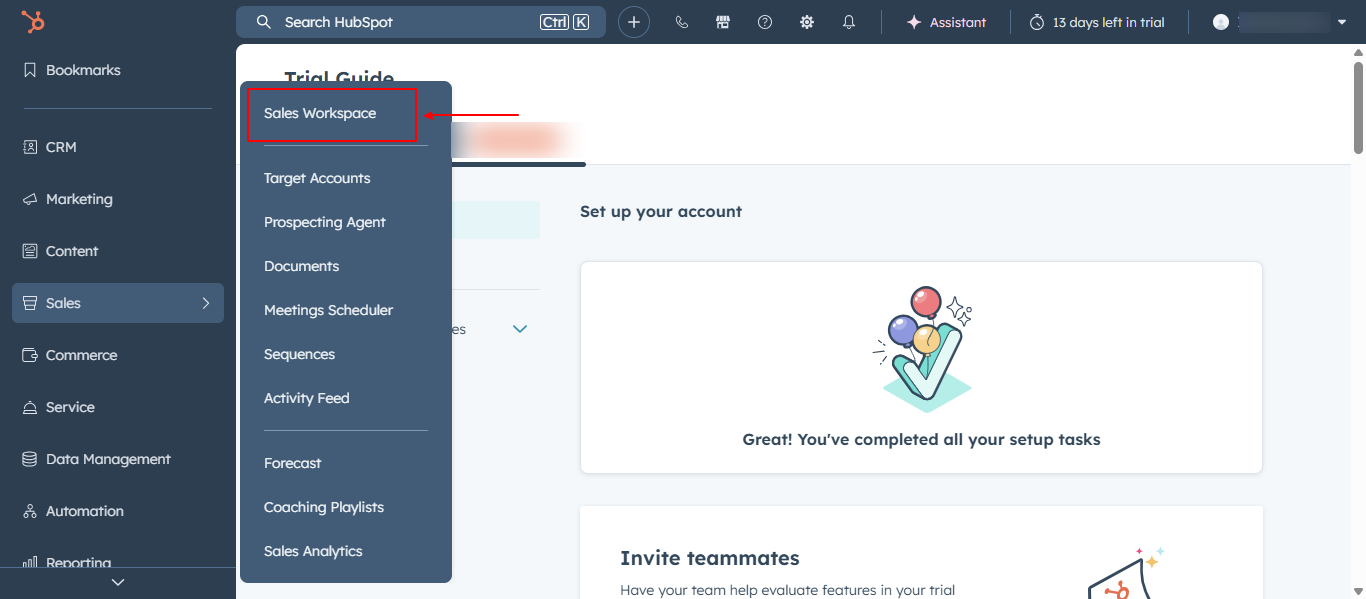
In the top navigation bar, click Sales.
Select Sales Workspace.
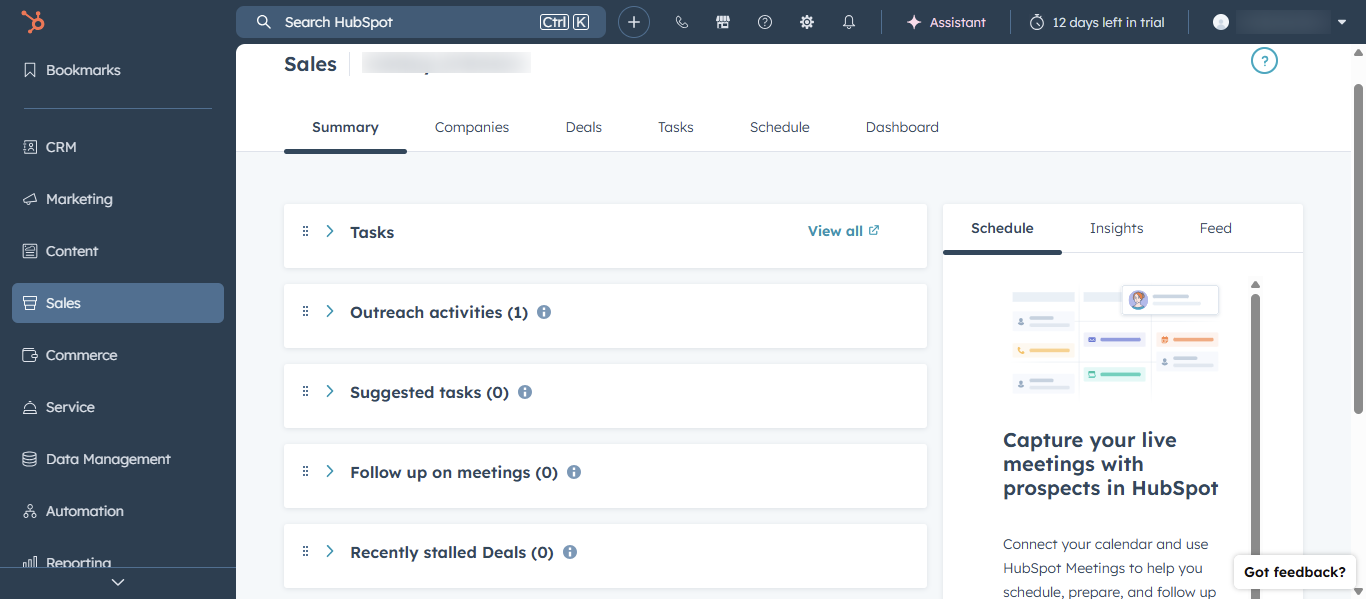
The workspace dashboard loads, showing your tasks, leads, and recent activity.
This interface lets you quickly review contact behavior, task due dates, and engagement signals, helping you decide which leads to contact first.
Step 3: Review lead activity and engagement signals
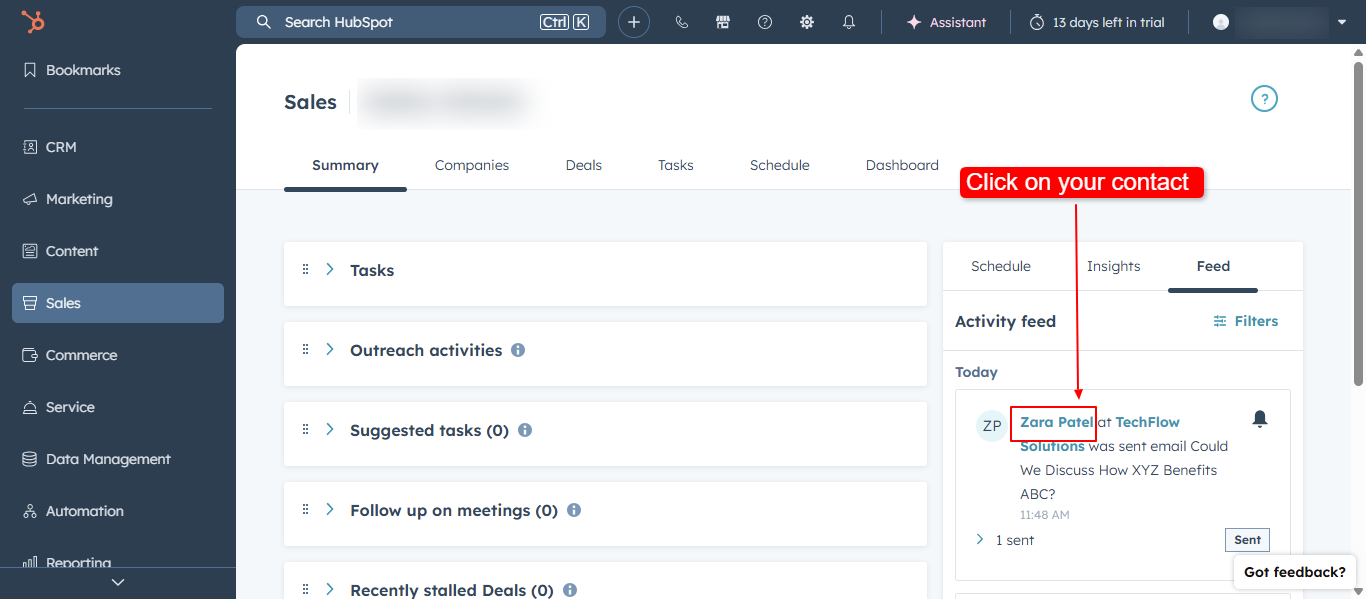
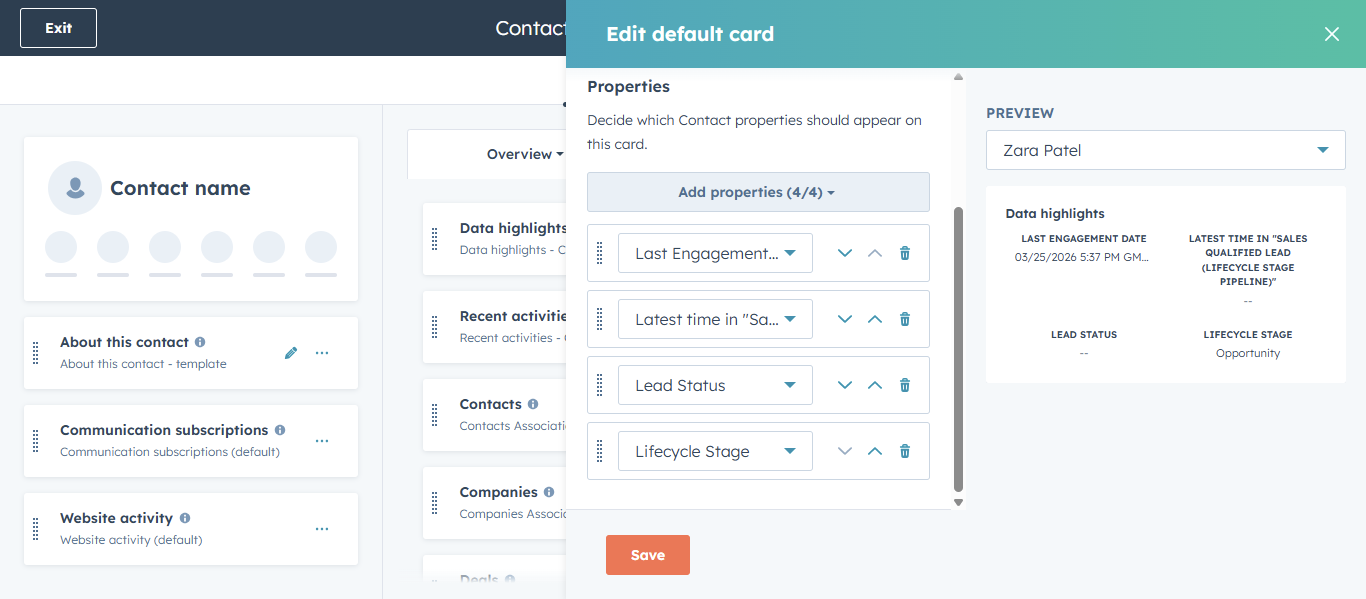
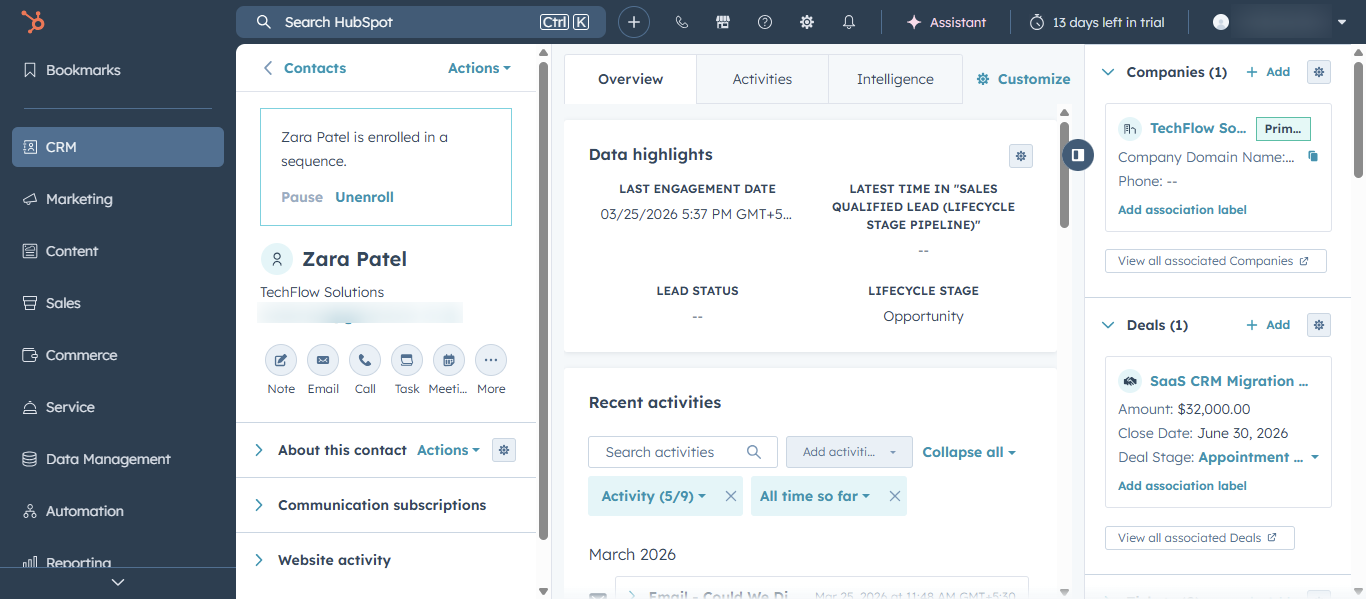
Within Sales Workspace, you can examine engagement signals that indicate interest. These signals show how active and interested a lead is, making it easier to prioritize follow-ups.
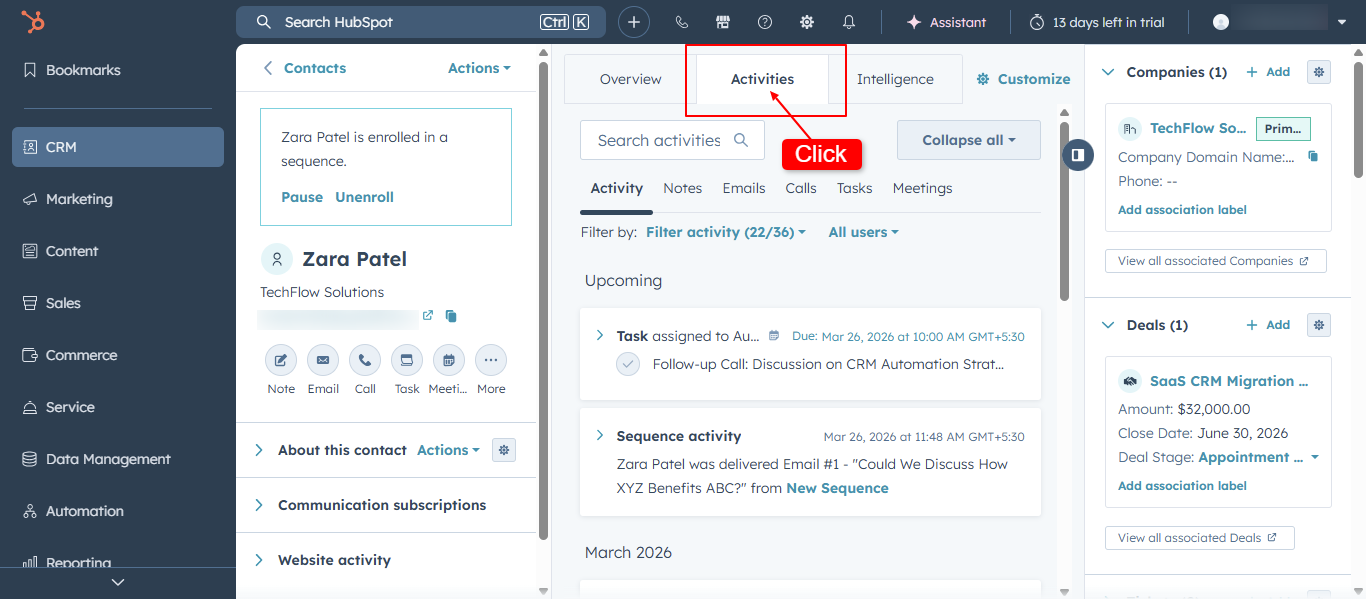
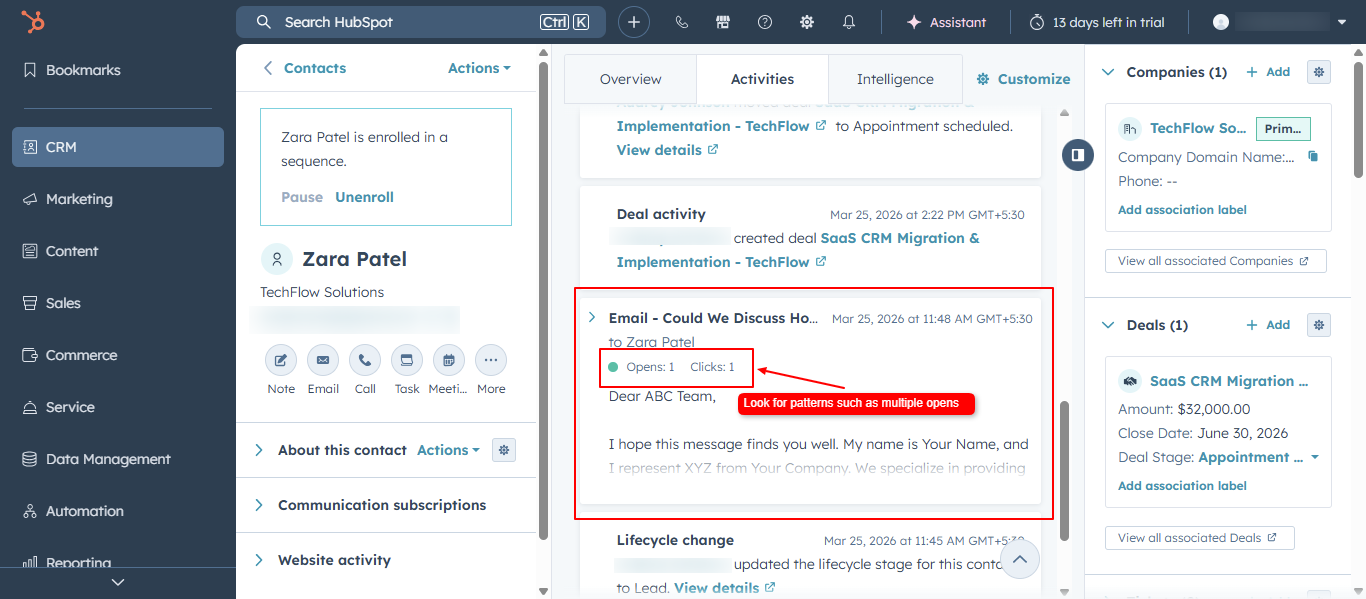
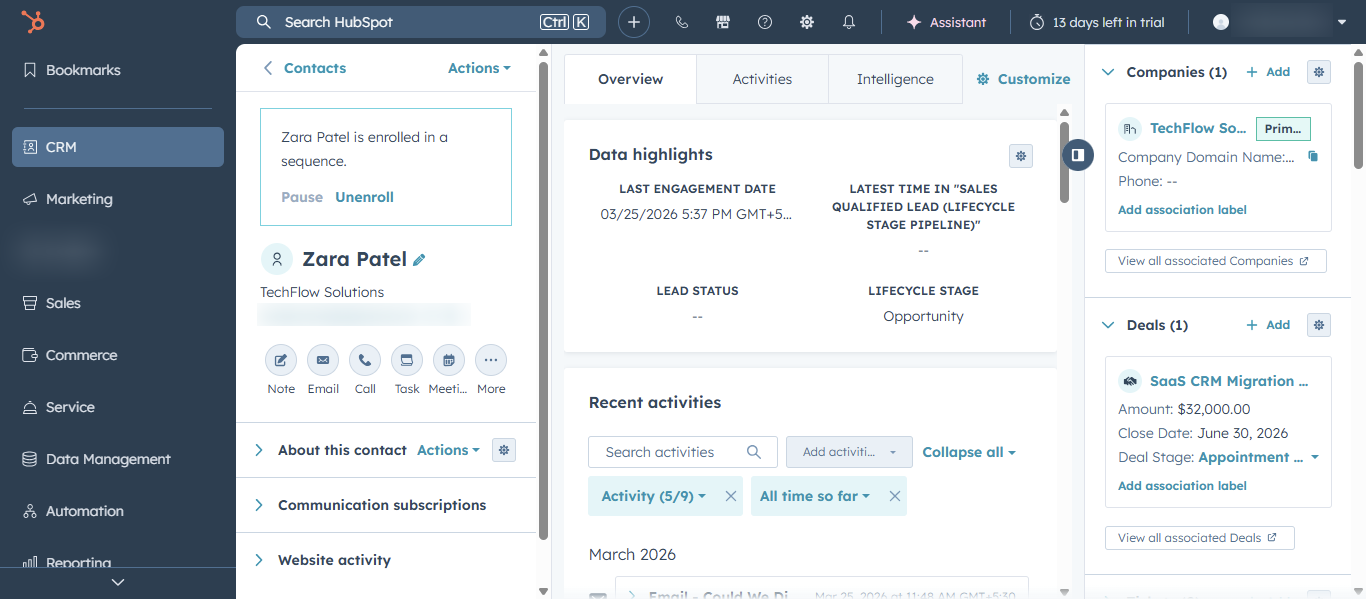
Open the Contact or Lead record from the workspace.
Check the activity timeline for recent interactions.
Look for patterns such as multiple opens, quick replies, or recent visits to key pages.
Leads with recent, repeated engagement should be marked as high priority and contacted quickly.
Step 4: Use tasks and activities to identify priority leads
HubSpot tasks help you track follow-ups and outreach actions. In Sales Workspace, you can use due dates and overdue tasks to prioritize leads automatically.
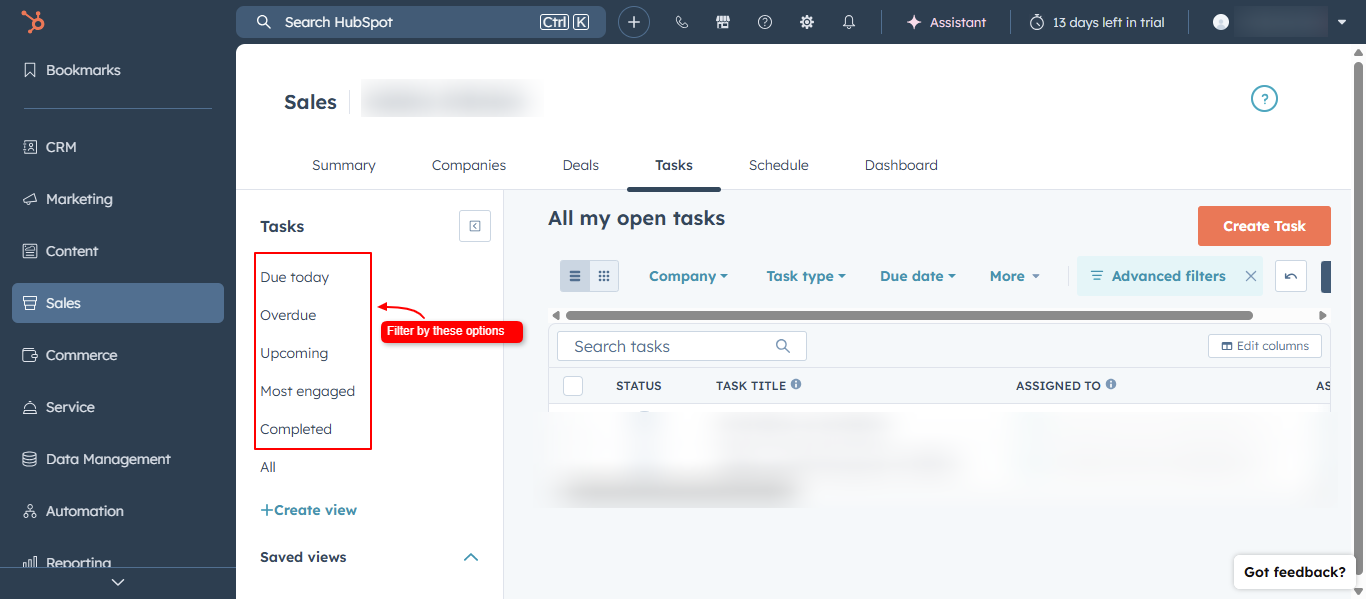
In the Tasks section inside Sales Workspace, review:
Tasks due today
Upcoming follow-up tasks
Overdue tasks
To prioritize leads via tasks:
In the Tasks panel, filter by Due today, Upcoming, or Overdue.
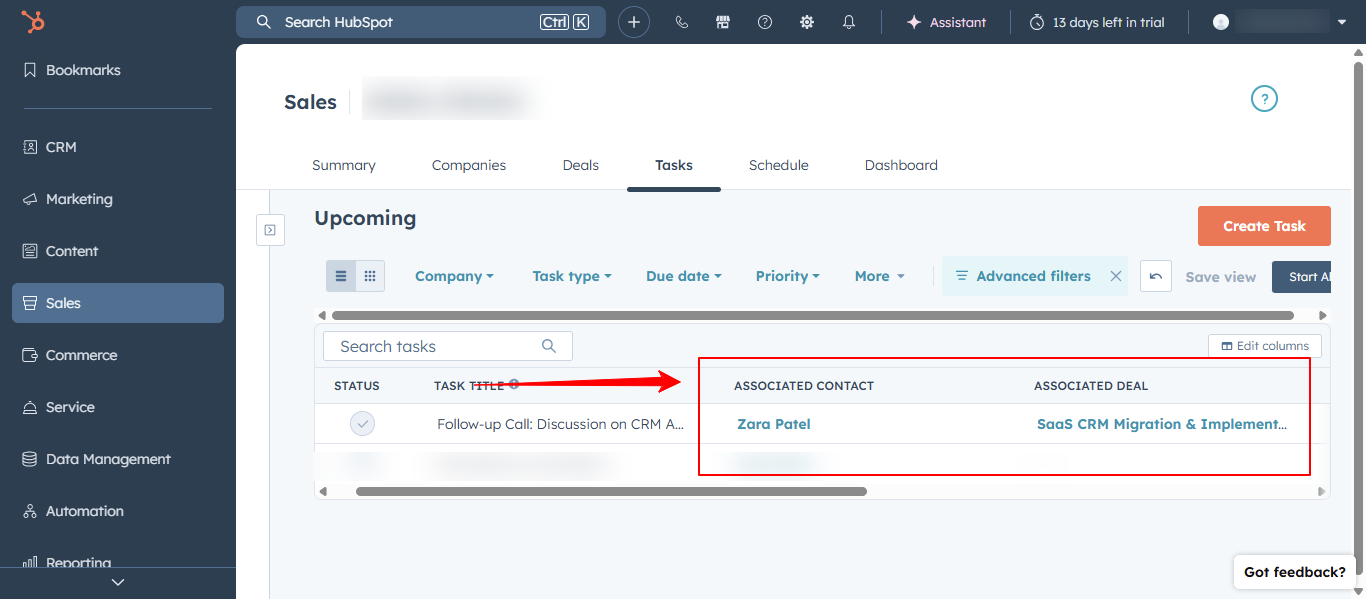
Open each task to see which contact or deal it’s associated with.
Contact those leads first, especially if they engaged recently or have upcoming meetings.
Certain behaviors strongly suggest a lead is closer to making a decision. HubSpot highlights many of these signals directly in the Sales Workspace or activity timeline.
High-intent signals include:
Multiple email opens or replies to your outreach
Booking a meeting or demo
Visiting pricing, product, or ROI-focused pages
Downloading key resources (e-books, checklists, case studies)
Responding to recent outreach or opening recent emails
When you see several of these signals together, treat that lead as high priority and move them to the top of your follow-up list.
Step 6: Use filters to focus on important leads
Filters in HubSpot help you narrow down which leads to prioritize based on your criteria.
HubSpot Sales Workspace is a centralized dashboard that shows your tasks, leads, deals, and engagement activity so you can prioritize and follow up on the right prospects efficiently.
Engagement signals such as email opens, replies, meeting bookings, and website visits show how interested a lead is. Leads with fresh, repeated engagement are more likely to convert and should be prioritized.
Yes. You can use HubSpot workflows to update lifecycle stages, assign tasks, or create sequences based on engagement (e.g., email opens, page visits). This helps surface high‑intent leads automatically.
Lifecycle stage is important, but it should be combined with engagement signals, deal stage, and task status for more accurate prioritization. A lead marked as “Marketing Qualified” with no recent activity may be less urgent than an “Unqualified” lead who just booked a meeting.