Get your Black Friday deal today! Avail now! 💥

LinkedIn to HubSpot integration

Keep LinkedIn prospecting connected to HubSpot.

See whether a prospect already exists, add the right contact and company record, and sync the conversation without rebuilding the story in another tab.

No credit card required. Works with HubSpot Free and paid plans.

LeadCRM workflow showing LinkedIn profile data, HubSpot context, and enrichment details
Live LeadCRM workflow
HubSpotHubSpot Free and paid plansLinkedInLinkedIn Free and Sales Navigator support
Built for the HubSpot workflowNo credit card requiredHistorical and future message sync4.8/5★★★★★G2Capterra
How it works

From LinkedIn profile to a complete HubSpot record.

Click through the workflow. Each step gives your team more context without asking them to leave the prospect profile.

Open the profile

Start where your rep is already prospecting.

Check and add the right record

Link an existing record or add the right Contact, Lead, and company context.

Keep the conversation

Send messages to HubSpot as notes or activities.

Move the deal forward

Give the next rep the context they need to act.
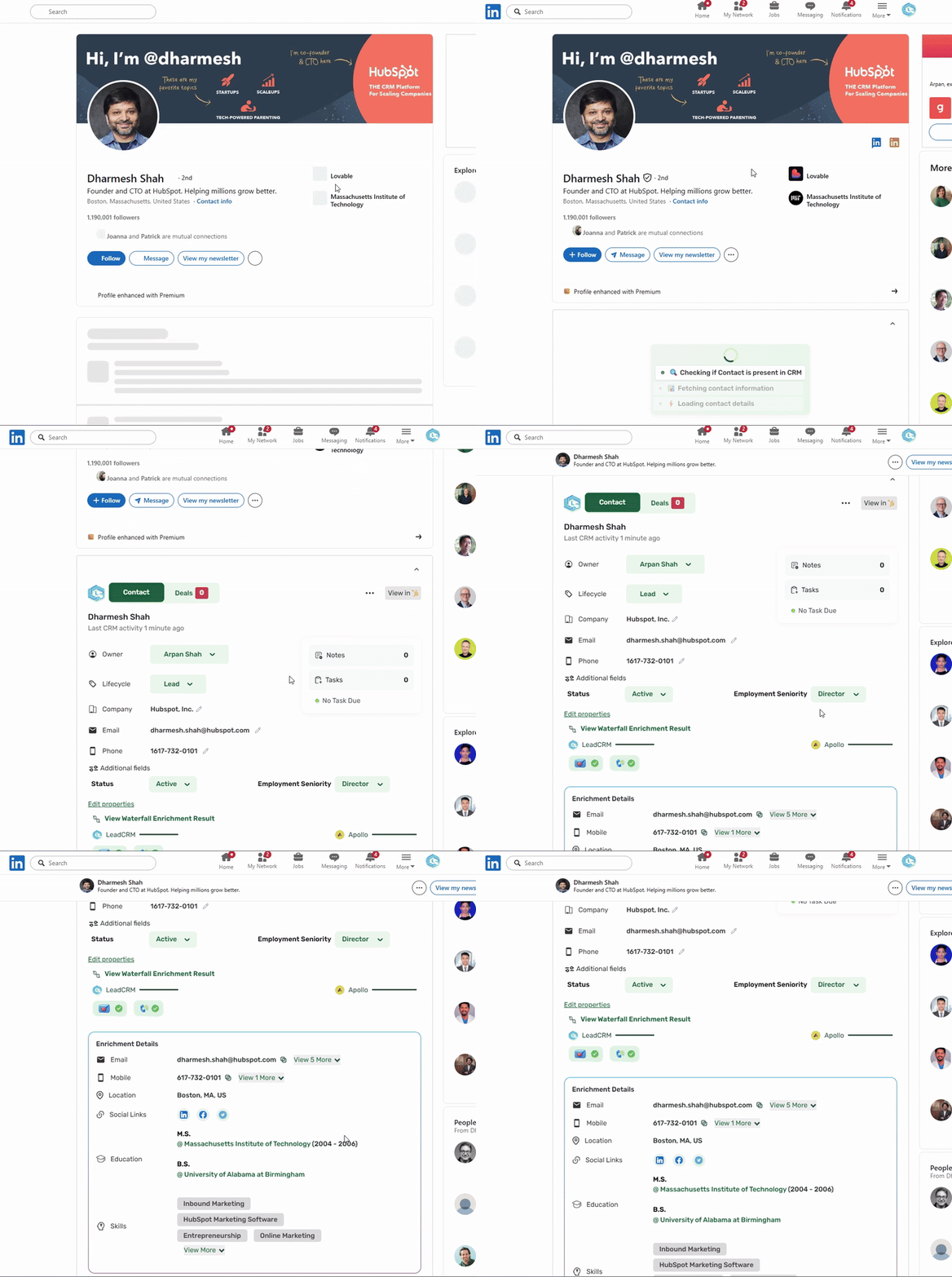
LeadCRM overlay on a LinkedIn profile
Open the profile

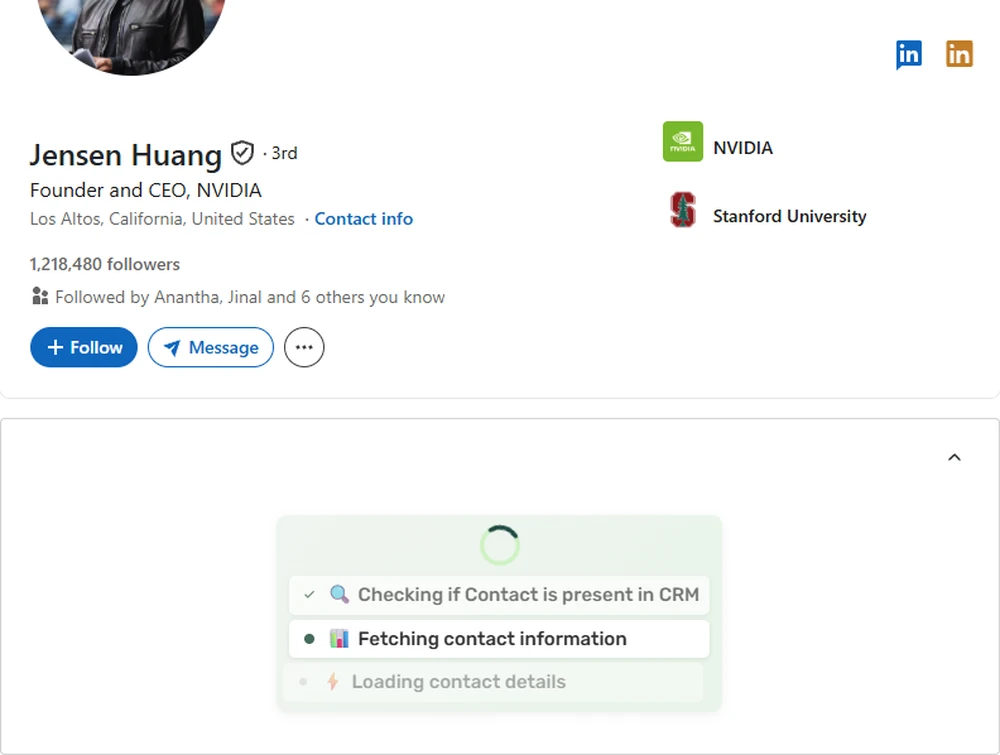
Start from a LinkedIn or Sales Navigator profile. LeadCRM checks the CRM context and begins fetching the details your team needs.

Step 1 of 4
Work without tab switching

Keep the LinkedIn context in front of you.

LeadCRM sits on the profile you are working. You can see the connected CRM context, manage linked deals, add notes, and create tasks while you stay focused on the prospect.

LeadCRM on LinkedInHubSpot record
  • Connect a profile to an existing HubSpot contact instead of creating a duplicate.
  • Manage linked deals, notes, and tasks while you work from LinkedIn.
  • Keep connected changes synced between LeadCRM and HubSpot.
LinkedIn profile context with LeadCRM contact and task overlays
LeadCRM workflow screen. Use the connected record without leaving the prospect profile.
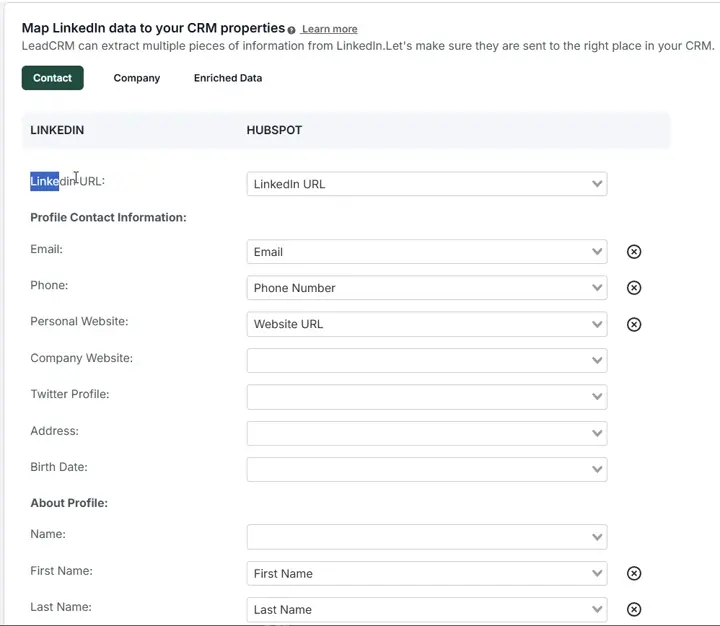
LeadCRM field mapping settings for HubSpot
Field mapping

Your CRM fields. Your rules.

Map LinkedIn and enrichment data into the HubSpot properties that match your team’s workflow. Preserve both sources, or let enriched data replace the original value where you choose.

Contact, Company, and Enriched Data mappings available
Map enriched data to a new field to preserve both sources
Map to an existing field when the enriched value should replace the original
Leave a field blank to prevent that enrichment data from syncing
Mapping changes are logged for visibility
Read the field-mapping guide →
Message sync

Sync LinkedIn messages to HubSpot, including the conversation already there.

Keep the full conversation with the contact record your team already works from. Historical messages and future replies stay connected instead of being left in a separate inbox.

See how a LinkedIn or Sales Navigator conversation is added to the connected HubSpot record. The full conversation appears on the matching HubSpot contact record. 

Historical and future messages LinkedIn Inbox and Sales Navigator Log as activities or notes Existing-contact matching
Beyond the first sync

Make the CRM you already have more useful.

Bring LinkedIn activity, job changes, and relationship context into the HubSpot workflows your team already uses.

HubSpot contact activity timeline and LeadCRM enrichment update panel
LeadCRM enrichment and CRM context screen
01

Keep records current

Enrich existing HubSpot lists and update records using the mapping rules your team has chosen.

02

Spot conversations that need follow-up

Use last-sent and last-received message timestamps to see when a relationship last moved.

03

Trigger the next workflow

Use activity fields such as last_message_sent_on, last_message_received_on, and Connected_at as useful workflow inputs.

04

Reconnect at the right moment

Track job changes so a past champion moving to a new role or company can become a timely re-engagement opportunity.

Questions

LinkedIn and HubSpot integration FAQs

Can I add a LinkedIn profile as a HubSpot contact or lead?

Yes. LeadCRM can add a complete LinkedIn profile as a Contact or Lead and push available profile data into HubSpot according to your field mapping.

Can LeadCRM connect to an existing HubSpot contact?

Yes. When the contact already exists, LeadCRM provides an existing-contact workflow so you can connect the LinkedIn profile and add messages to that record instead of creating a duplicate.

Can I sync LinkedIn messages to HubSpot?

Yes. LeadCRM can Sync messages/Inmails from both normal LinkedIn Inbox and Sales Navigator Inbox to HubSpot as activities or notes, according to your selected workflow.

Does it sync old LinkedIn messages?

Yes. LeadCRM supports historical message synchronization and can automatically synchronize future messages in the background.

Can I choose where LinkedIn data goes in HubSpot?

Yes. Custom field mapping lets you choose CRM properties for LinkedIn profile data, company data, and enriched data. You can preserve both sources or let enriched values replace originals.

Does the LeadCRM overlay show whether a prospect already exists?

Yes. The overlay on the LinkedIn profile provides existing-contact context so your team can connect the profile to the right HubSpot record rather than creating a duplicate.

Can LeadCRM create the company as well as the contact?

Yes. When the contact is added, LeadCRM can create the company the person currently works for so the HubSpot record includes both contact and company context. You can always turn this off if needed.

What happens if someone on my team is already working the contact?

You can connect the LinkedIn profile to the existing HubSpot contact and sync the conversation to that record, keeping the team’s context in one place instead of creating another record.

Can I send messages from HubSpot and it gets sent on LinkedIn?

No. LeadCRM is a bridge between LinkedIn and HubSpot. It does not automate LinkedIn activity.

Does LeadCRM work with HubSpot Free?

Yes. LeadCRM works with HubSpot Free and paid plans. You can sign up for free without a credit card.

Which versions of LinkedIn are supported?

LeadCRM works with Basic Free LinkedIn and LinkedIn Sales Navigator.

Do LeadCRM Store my contact data?

LeadCRM is designed to avoid persistent storage of contact data; it transfers the data needed for your configured CRM workflow.

Start with the workflow

Connect LinkedIn to HubSpot and keep the next step visible.

Capture the profile, map the data, preserve the conversation, and keep the follow-up moving.

Start free. No card required →