LinkedIn Sales Navigator is a powerful prospecting tool, but many users struggle with one critical limitation: there’s no built-in feature to export leads directly. This comprehensive guide will show you exactly how to export leads from Sales Navigator using multiple effective methods, helping you leverage your valuable lead data for multichannel outreach campaigns.
What you’ll learn in this guide:
- Why exporting leads from Sales Navigator matters for your sales process
- 5 proven methods to export Sales Navigator leads to Excel, CSV or your CRM
- Step-by-step instructions with screenshots for each export method
- Tool comparisons to help you choose the right solution
- Best practices to maximize your Sales Navigator lead exports
Can You Export Leads from Sales Navigator?
While LinkedIn doesn’t provide a native export feature in Sales Navigator, the answer is yes, you can export leads using several workarounds and third-party tools. This limitation exists because LinkedIn wants to protect user data and encourage platform engagement, but sales professionals need this data in their CRM systems for effective outreach.
Important: When exporting leads from LinkedIn Sales Navigator, always ensure you comply with LinkedIn’s terms of service and data privacy regulations like GDPR.
Why Exporting Leads from LinkedIn Sales Navigator Is Essential?
Before diving into the methods, let’s understand why being able to export lead lists from Sales Navigator is crucial for your sales process:
- CRM Integration: Transfer prospect information directly into your sales pipeline
- Data Organization: Manage and segment leads more efficiently outside LinkedIn
- Multi-channel Outreach: Use contact details for email, phone, and other outreach channels
- Advanced Analytics: Apply your own data analysis and scoring systems
- Team Collaboration: Share lead information with team members who may not have Sales Navigator
- Backup Your Data: Prevent losing access to important prospect information if your subscription ends
Method 01 : Export Sales Navigator Leads via Native CRM Integration
LinkedIn Sales Navigator integrates with several popular CRMs, allowing you to sync leads rather than directly exporting them.

Step-by-step process:
Connect Your CRM:
- Go to your Sales Navigator Admin Settings
- Select “Integrations” from the menu
- Choose your CRM (Salesforce, HubSpot, Microsoft Dynamics, etc.)
- Follow the authentication prompts to connect accounts
Save and Sync Leads:
- Find prospects using Sales Navigator search
- Save leads to a list
- Use the CRM sync option to push data to your connected platform
Export from Your CRM:
- Access your newly synced leads in your CRM
- Use your CRM’s export functionality to download as Excel or CSV
Limitations of this method:
- Requires an active CRM subscription
- Only transfers basic information, not all Sales Navigator data fields
- Two-step process that isn’t direct export
This approach is designed for Large Enterprise Teams. This integration allow to Sync Sales Nav messages also.
However this lacks the Enrichment so no contact information can be sent to your CRM for further workflow execution. You will have to run internal Enrichment tools like LeadCRM which allows to enrich any contact from HubSpot like CRMs.
Method 2: Export Leads from Sales Navigator Using Third-Party Tools

Third-party tools offer the most efficient way to export LinkedIn Sales Navigator leads to Excel or CSV files. But you need to ensure you select a trustworthy extension which does not scrape anything in the background and stays within safe limits.
Top tools for exporting Sales Navigator leads:
– LeadCRM
– Evaboot (no longer working now)
– Phantombuster
Using LeadCRM.io’s Export Tool:
- Install LeadCRM Chrome Extension
- Create Free LeadCRM Account.
- Create your search in Sales Navigator or select a lead list
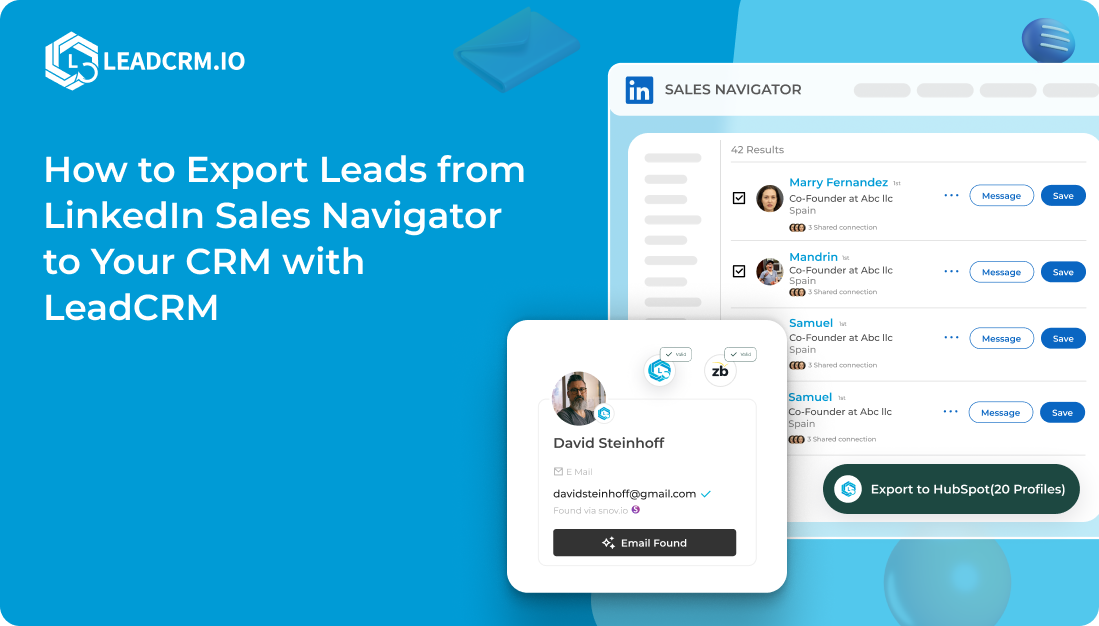
- You can now either export upto 600-800 prospect a day using single click. You can connect Google Sheet, HubSpot, Pipedrive, SalesForce, Zoho CRM, Close etc.
- All the data will be exported as per your field mapping and can be enriched with singel click. No more manual Field mapping inside your CRM.
Using Evaboot to Export Leads (no longer working)
- Install the Evaboot Chrome Extension (No longer available as of 20th May 2026)
- Create your search in Sales Navigator and generate a lead list
- Click the “Export with Evaboot” button that appears above your results
- Select your export preferences (fields to include, file format)
- Download your CSV file with complete lead information
Using Phantombuster to Extract Sales Navigator Data:
- Create a Phantombuster account
- Set up the “LinkedIn Sales Navigator Search Export” phantom
- Configure your search parameters and authentication
- Run the automation to extract lead data
- Download your leads as CSV or JSON
Method 3: Manual Copy-Paste Export from Sales Navigator

If you’re working with a small number of leads and prefer not to use third-party tools, you can manually copy lead information:
- Open your Sales Navigator lead list
- Create an Excel or Google Sheets spreadsheet with your desired columns
- Copy information from each lead profile individually
- Paste the data into your spreadsheet, maintaining consistent formatting
- Use tools like LeadCRM to enrich the missing Contact Information.
Drawbacks: This method is extremely time-consuming and error-prone, especially for large lead lists.
Method 4: Extract Data from Sales Navigator Using Web Scraping
Web scraping tools can extract data from your Sales Navigator lists, but exercise caution:
- Select a reputable web scraping tool that respects LinkedIn’s rate limits
- Configure the scraper to capture only the data fields you need
- Run the scraper on your Sales Navigator search results
- Export the captured data to your preferred format
Can You Export Lists from Sales Navigator to Excel?
Yes, you can export sales navigator leads to Excel using the methods outlined above. The most direct path is using a third-party tool like Evaboot or LeadCRM.io, which can provide your data in Excel-compatible formats. These tools typically export:
- Full name and title
- Company name and LinkedIn URL
- Location and industry
- Contact information (when available)
- Custom notes and tags
How to Export Sales Navigator Leads to Excel: Step-by-Step?
For those specifically looking to get their lead information into Excel format:
- Select your export method from the options above (third-party tool recommended)
- Configure export settings to include all needed fields
- Choose CSV or Excel as your output format
- Download the exported file
- Open in Excel and format as needed for your sales process
Comprehensive Tool Comparison for Exporting Lead Lists from Sales Navigator
| Tool | Export Features | Email Finding | CRM Integration | Pricing | Cost per Lead |
|---|---|---|---|---|---|
|
LeadCRM.io |
Complete profile data, one-click export |
Email + Phone |
Direct integration |
Subscription-based |
0.055 $ |
|
Evaboot |
Lead list export, basic enrichment |
Email + Phone |
Some CRMs |
Free trial, then paid |
0.180 $ |
|
Phantombuster |
Automated extraction, customizable |
No |
Via Zapier |
Usage-based |
0.138 $ |
|
Wiza |
40+ data points per lead |
Email + Phone |
Limited |
Pay-per-lead |
0.184 $ |
|
Manual Method |
Basic information only |
No |
Manual import |
Free |
10$+ |
*Cost is calculated for Export + Verified Email
Phantombuster does not verify emails, so actual valid email cost will be even higher.
Best Practices for Exporting LinkedIn Sales Navigator Leads
To maximize the effectiveness of your Sales Navigator lead exports:
1.) Refine Search Filters Before Export
- Use advanced filters (geography, industry, seniority)
- Create highly targeted segments for better conversion rates
2.) Navigate LinkedIn’s Search Limits
- Sales Navigator limits results to 2,500 leads per search
- Break larger target audiences into smaller segments
- Use saved searches and Lead List to track new leads that match your criteria
3.) Maintain Data Hygiene
- Regularly update exported lead information
- Remove duplicates from multiple exports (if your tool does not support this natively)
- Verify contact information before outreach (if emails are not verfied by source)
4.) Ensure Privacy Compliance
- Follow GDPR, CCPA and other data privacy regulations
- Document your data collection and usage policies
- Provide opt-out mechanisms in your outreach
5.) Implement Proper Data Storage
- Use secure, encrypted storage for lead information
- Limit access to authorized team members
- Set data retention policies for inactive leads
For more advanced strategies on optimizing your LinkedIn lead generation, visit our LinkedIn lead generation guide.
How to Export Lead List from LinkedIn Sales Navigator to Your CRM?
For seamless CRM integration:
- Choose a tool that supports direct CRM connection
- Export your Sales Navigator leads using your preferred method
- Map LinkedIn data fields to your CRM fields
- Import the data with proper lead source attribution
- Set up automation workflows for follow-up actions
Our CRM integration features make this process effortless, with pre-built connectors for popular platforms like Salesforce, HubSpot, and more.

Frequently Asked Questions About Exporting Sales Navigator Leads
Can I export my leads from Sales Navigator directly?
No, LinkedIn doesn’t provide a native export function. You’ll need to use CRM integrations or third-party tools as described in this guide.
Can you extract data from Sales Navigator?
Yes, through various methods including CRM integrations, third-party tools, and API connections, though direct extraction isn’t supported by LinkedIn.
How do I export leads from LinkedIn campaign?
LinkedIn Campaign Manager offers export functionality for campaign data. Go to your campaign, click “Download,” and select your preferred format.
How do I export salesforce leads?
In Salesforce, navigate to the Leads tab, create a list view of desired leads, click the gear icon, and select “Export” to download as a CSV file.
How to share lead list from Sales Navigator?
You can share lists with team members in your Sales Navigator contract by clicking on a saved list, selecting “Share,” and entering colleague names or emails.
How to export Sales Navigator leads to Excel?
Use third-party tools like Evaboot or LeadCRM.io to export your leads in Excel-compatible formats, as described in Method 2 above.
Is it legal to export LinkedIn Sales Navigator data?
Yes, it’s legal when done in compliance with LinkedIn’s terms of service and applicable data privacy laws. Avoid excessive automation and respect rate limits.
Conclusion: Maximizing Your LinkedIn Sales Navigator Investment
Exporting leads from LinkedIn Sales Navigator is an essential skill for modern sales professionals. While LinkedIn doesn’t make it straightforward, the methods outlined in this guide provide practical solutions for efficiently extracting and leveraging your valuable lead data.
By implementing these export strategies, you can:
- Better organize your prospect information
- Create more effective multichannel outreach campaigns
- Track and measure your Sales Navigator ROI
- Streamline your sales process from prospecting to close
Whether you choose CRM integration, third-party tools, or our recommended LeadCRM.io solution, the ability to export and manage your Sales Navigator leads will significantly enhance your sales effectiveness.
Ready to streamline your LinkedIn lead generation process?
Explore how LeadCRM.io can help you automatically export, enrich, and engage with your Sales Navigator leads through our comprehensive LinkedIn automation platform.