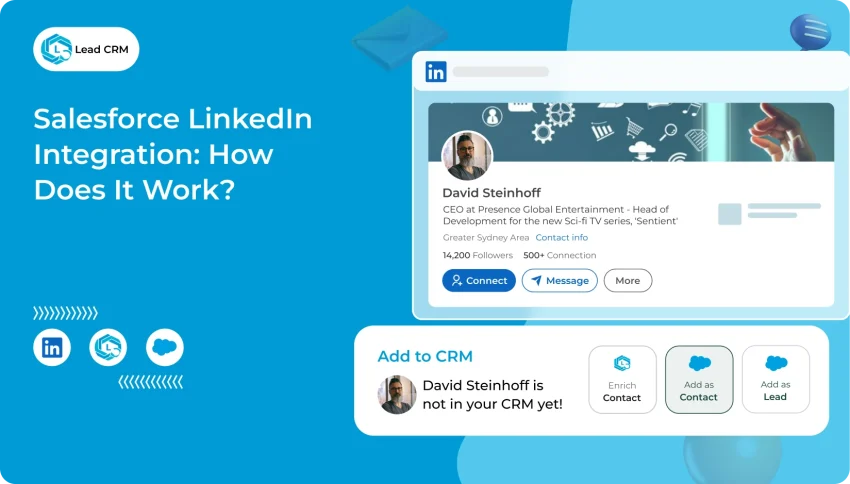
Salesforce LinkedIn integration connects LinkedIn and Sales Navigator data with Salesforce CRM. It can be implemented natively through LinkedIn’s Sales Navigator CRM Sync (requiring a Sales Navigator Advanced Plus plan) or via browser-first extensions like LeadCRM to capture contacts, associate accounts, and log message activities directly from LinkedIn.
LinkedIn’s native Sales Navigator CRM Sync is designed for eligible Sales Navigator Advanced Plus customers and can write selected Sales Navigator activity to Salesforce based on the organisation’s configuration. LeadCRM is a browser-first alternative for teams that prospect in regular LinkedIn or Sales Navigator and need to create or update Salesforce Leads, Contacts, and Accounts, associate people with companies, and retain supported context inside Salesforce. The right choice depends on where your team works, which Salesforce objects you need, and whether your admin permits API-connected third-party apps.
Paid LinkedIn Lead Gen Forms represent a separate marketing-operations workflow for capturing ad responses, rather than day-to-day rep prospecting.
Explore LeadCRM’s Salesforce integration or start a LeadCRM account if browser-to-Salesforce capture matches your team workflow.
What “Salesforce LinkedIn integration” can mean
Connecting Salesforce with LinkedIn is not a single feature. In practice, sales and revenue teams usually mean one of five distinct jobs:
- Viewing Sales Navigator data or LinkedIn context inside Salesforce: Reps review profile summaries, company details, or Sales Navigator insights without leaving the Salesforce record.
- Creating or updating Salesforce Leads, Contacts, and Accounts from LinkedIn: Reps capture a prospect or company profile directly from LinkedIn or Sales Navigator into Salesforce without retyping details.
- Writing LinkedIn or Sales Navigator activity and message context back into Salesforce: The team logs selected InMails, messages, or prospecting activities on the CRM record to preserve conversation context.
- Linking person records with company and Account records: Associating a Contact with a Salesforce Account, or setting company values on a Lead prior to conversion.
- Sending LinkedIn Lead Gen Form submissions into Salesforce: Marketing automatically routes paid ad submissions into Salesforce for attribution and inbound follow-up.
Compare the integration options
Before installing packages or altering Salesforce permissions, evaluate how each method handles workflow location, prerequisites, and data ownership.
| Approach / Tool | Best for | Architecture & workflow | Access & prerequisites | Custom field mapping & duplicates | Key trade-off / limitation |
|---|---|---|---|---|---|
| Native LinkedIn Sales Navigator (CRM Sync) | Enterprise teams already standardised on Sales Navigator Advanced Plus wanting embedded CRM widgets | Embedded Lightning Web Components / iFrames inside Salesforce records + scheduled CRM Sync writeback | Sales Navigator Advanced Plus contract (eligible plan and contract agreement) and Salesforce API access | Pre-configured system field mappings; automated sync requires administrative matching rule setup | Restricted strictly to Advanced Plus tier; does not support standard LinkedIn inbox or regular profiles |
| LeadCRM | Sales teams prospecting across standard LinkedIn or Sales Navigator needing fast record creation and Account association | Browser-first Chrome extension capturing directly from profiles, company pages, and inboxes into Salesforce REST APIs | LeadCRM account, standard LinkedIn or Sales Navigator, and standard Salesforce user login with API access | Custom field mapping for Leads, Contacts, and Accounts; active duplicate detection against LinkedIn URL | Requires initial OAuth connected-app approval and field-level security verification by Salesforce admin |
| LinkedIn Lead Gen Forms | Marketing and Demand Gen teams routing paid ad responses into inbound sales queues | Server-to-server webhook integration via LinkedIn Campaign Manager and Salesforce Lead capture | Active LinkedIn Ads account, Campaign Manager admin rights, and Salesforce Web-to-Lead or Marketing Cloud integration | Form-level field mapping from ad questions into Salesforce Lead object fields | Captures only paid inbound form fills; does not support outbound seller prospecting or inbox conversations |
Enrichment is a separate capability from CRM sync. Verify which fields are supplied by LinkedIn, LeadCRM, or an external enrichment provider before selecting an integration.

If your team is already invested in Sales Navigator Advanced Plus and primarily seeks embedded Salesforce views, the native path provides an established foundation. If your reps need direct browser capture across standard LinkedIn and Sales Navigator, with flexible company Account creation and durable CRM context, LeadCRM delivers a faster operational path.
Option 1: Native Sales Navigator CRM Sync Setup
LinkedIn’s native Salesforce integration is designed around Sales Navigator. As documented in LinkedIn’s CRM Sync technical documentation, native CRM Sync is available only to Sales Navigator Advanced Plus customers and must be enabled through a LinkedIn representative, alongside a compatible Salesforce edition (Enterprise, Performance, Unlimited, or Professional with API access enabled).
According to LinkedIn’s Salesforce integration guide and Advanced Plus feature documentation, native CRM Sync can provide activity writeback. Administrators can configure users to log selected Sales Navigator InMails, messages, phone calls, notes, and Smart Link views directly to matched Salesforce records.
Native implementation overview
- Install the official Salesforce package: Install the official LinkedIn Sales Navigator package or integration for Salesforce into your organisation (production or sandbox) following current LinkedIn documentation.
- Enable the integration in Salesforce: In Salesforce Setup, enable the LinkedIn Sales Navigator integration settings to allow communication between systems.
- Assign user permissions and access: Assign the appropriate permission sets and user access required by the current LinkedIn Sales Navigator package and your Salesforce administrator configuration.
- Add components to page layouts: Place the supported LinkedIn Sales Navigator components onto your relevant Salesforce page layouts (such as Leads, Contacts, Accounts, and Opportunities).
- Configure CRM Sync and activity writeback in Sales Navigator Admin: In the Sales Navigator Admin portal, connect your Salesforce CRM instance and enable CRM Sync and supported activity writeback. This requires an eligible Sales Navigator Advanced Plus agreement to write back supported InMails, messages, notes, and activity records into Salesforce.
Sales Navigator CRM integration requires an eligible Advanced Plus contract. Pricing varies by region, contract term, seat count, and negotiated agreement; confirm current pricing with LinkedIn.
How to Connect LinkedIn to Salesforce Without Sales Navigator Advanced Plus
LeadCRM provides a browser-first workflow connecting LinkedIn directly to Salesforce. Reps prospect across standard LinkedIn profiles, LinkedIn company pages, the standard LinkedIn Inbox, or Sales Navigator, using the LeadCRM Chrome extension to create and enrich Salesforce records immediately without requiring an Advanced Plus tier.
LeadCRM connects to Salesforce through secure OAuth 2.0 and writes records using standard Salesforce REST APIs. Reps can operate on any Salesforce edition where the user has API access, connected-app approval, and standard object and field permissions.
The Salesforce objects, field mappings, matching signals, and conversation/activity data available in your workflow depend on your LeadCRM configuration and Salesforce permissions. Review the current supported-data documentation before rollout.
See how LeadCRM maps a LinkedIn profile to Salesforce.
Step-by-step LeadCRM setup walkthrough
- Connect Salesforce via OAuth 2.0: Log into your LeadCRM dashboard, select Salesforce as your CRM destination, and complete the standard Salesforce OAuth authorization flow.
- Approve connected app policies: If your Salesforce organisation restricts third-party integrations, have a Salesforce administrator approve the LeadCRM Connected App under Setup > Connected Apps OAuth Usage.
- Verify user API and object permissions: Confirm that connecting Salesforce profiles have the
API Enabledadministrative permission, alongside Create/Read/Edit rights onLead,Contact,Account, andTaskobjects. - Install the LeadCRM Salesforce package (direct link): Install the managed package via LeadCRM’s direct installation URL. Note that LeadCRM provides a direct package link rather than a public listing on the AppExchange directory.
- Configure custom field mappings and duplicate rules: Map LinkedIn profile URLs to a custom field on Leads and Contacts, define Account linking preferences, and set duplicate detection rules before inviting team members.
How to Export and Import LinkedIn Contacts to Salesforce
Moving contacts from LinkedIn to Salesforce requires understanding how Salesforce handles prospect identity. A common mistake is treating Leads and Contacts as interchangeable.
In Salesforce terminology, a Lead represents an unqualified prospect. A Lead record includes a simple text field called Company, but it maintains no relational link to an Account record. An Account represents an organisation, and a Contact represents a person associated with that Account through a required relational lookup.
When reps export profiles from LinkedIn or Sales Navigator into Salesforce:
- Exporting as a Salesforce Lead: Use this path for early-stage outbound outreach where company vetting is ongoing. The prospect’s current employer is mapped into the Lead’s
Companytext field. When qualified, Salesforce’s native lead conversion creates or matches the Account and Contact. - Exporting directly as a Contact and Account: Use this path for account-based marketing (ABM) and targeted outbound sales. LeadCRM checks whether the company already exists as a Salesforce Account. If found, the new Contact links directly to that existing Account. If the Account does not exist, LeadCRM allows reps to create the Account record from the LinkedIn company page first, preventing orphaned contacts.
See how to create or associate a Salesforce Account from LinkedIn.
LinkedIn Contact Enrichment in Salesforce
Importing a LinkedIn profile into Salesforce and enriching the resulting record are related but separate steps. A LinkedIn-to-Salesforce integration can capture supported profile and company context, create or update a Lead, Contact, or Account, and retain the LinkedIn profile URL for matching. Enrichment may add or verify fields such as work email, phone number, company size, industry, or technology data through LeadCRM or another documented data source.
What belongs to the integration?
Depending on the selected integration and configuration, the sync workflow may include:
- LinkedIn profile URL and identity information.
- Name, current title, company, and location.
- Company-page information used to match or create a Salesforce Account.
- Supported LinkedIn or Sales Navigator activity context.
- Salesforce Lead, Contact, Account, Task, or Note records.
What belongs to enrichment?
Enrichment is the additional process of filling or validating CRM fields that are not reliably supplied by the LinkedIn integration itself. Examples can include:
- Work email and phone number.
- Company industry, employee count, revenue, or website.
- Seniority, department, or other segmentation fields.
- Data confidence, source, and last-verified date.
Do not assume that native Sales Navigator CRM Sync provides verified email addresses or direct phone numbers. Confirm the current capabilities of the selected integration and enrichment provider before promising specific fields.
Recommended sync and enrichment sequence
- Capture the LinkedIn profile URL and identify the target Salesforce Lead or Contact.
- Check existing Leads, Contacts, and Accounts before creating a new record.
- Create or update the Salesforce record with supported LinkedIn data.
- Run enrichment only for fields that are missing or approved for update.
- Store the enrichment source, date, and confidence where available.
- Apply Salesforce validation and duplicate rules before finalising the record.
For field-level mapping, provider selection, overwrite rules, and detailed enrichment automation, see LeadCRM’s guide to CRM data enrichment.
How to Sync LinkedIn InMail and Messages to Salesforce Activities
Sales conversations on LinkedIn often vanish when reps change roles or when deals transition to account executives. Capturing message context directly inside Salesforce ensures team-wide visibility.
Integration approaches handle message context through distinct mechanisms:
- Native Sales Navigator Activity Writeback: Available exclusively on Sales Navigator Advanced Plus plans, native writeback logs InMails, messages, notes, and calls as completed Task records linked to matched Salesforce Leads or Contacts. However, it does not capture interactions conducted through the standard LinkedIn Inbox.
- LeadCRM Message and Activity Sync: LeadCRM logs supported conversation context from both the standard LinkedIn Inbox and Sales Navigator directly into Salesforce Task or Activity records via standard Salesforce REST APIs. It creates an organisation-owned record in Salesforce, preserving historical communication context even if individual user seats change.
Ensure that sales reps have standard permissions to create and edit Tasks in Salesforce, and confirm that the subject line and activity type (e.g., LinkedIn Message or InMail) conform to your team’s standard CRM activity reporting standards.
View the LinkedIn Inbox and Sales Navigator sync workflow.
LinkedIn Ads & Lead Gen Forms: Capturing Paid Inbound in Salesforce
While SDRs and account executives use browser extensions or Sales Navigator for outbound prospecting, marketing teams run paid sponsored content and LinkedIn Lead Gen Forms to collect inbound prospect inquiries.
Connecting LinkedIn Campaign Manager to Salesforce routes paid form submissions into your CRM automatically:
- In LinkedIn Campaign Manager, navigate to Account Settings > Lead Sync.
- Select Salesforce as the destination CRM and authenticate using administrative credentials.
- Map each field from your LinkedIn Lead Gen Form (e.g., Work Email, Job Title, Company Name) to corresponding fields on the Salesforce Lead object.
- Configure Salesforce Lead Assignment Rules so incoming paid leads are automatically routed to the correct sales rep or inbound qualification queue.
Treat paid inbound capture and outbound prospect integration as complementary layers: Lead Gen Forms capture active hand-raisers from paid campaigns, while LeadCRM equips reps to prospect directly into target accounts on LinkedIn.
Reporting on LinkedIn Prospecting Pipeline in Salesforce Reports & Dashboards
Connecting LinkedIn to Salesforce is only as valuable as the revenue visibility it creates. To demonstrate pipeline attribution and rep productivity, configure dedicated Salesforce Reports and Dashboards.
Track these essential metrics using standard Salesforce reporting:
- Source attribution tracking: Standardise the
LeadSourcefield across captured records (e.g.,LinkedIn – OutboundorLinkedIn – LeadCRM). Build a Salesforce summary report grouping Leads and Opportunities by Lead Source to measure pipeline and closed-won revenue generated from LinkedIn. - Prospecting activity volume: Generate a Task & Activity report filtered by activity type (e.g., Task Subject containing
LinkedIn MessageorInMail). Group activities by sales rep and calendar week to monitor outbound engagement frequency. - Lead-to-opportunity conversion rate: Track the velocity and conversion percentage of LinkedIn-sourced leads compared to other acquisition channels, evaluating lead quality and targeting accuracy.
Field mapping, record ownership, and duplicate prevention
A dependable integration requires a structured field map. Capturing data without clear record rules leads to duplicate records and conflicting ownership.

Before launch, your RevOps or admin team should agree on key operational policies:
- LinkedIn profile URL as primary matching key: Map the LinkedIn profile URL to a dedicated custom field on Leads and Contacts to serve as an exact matching signal.
- Lead vs. Contact selection: Standardise whether outbound reps create Leads or associate Contacts with existing Accounts.
- Account creation policy: Require checking for existing Salesforce Accounts before creating new Account records from company pages.
- Source tracking: Assign a standard lead source value, such as
LinkedIn – LeadCRM, to track pipeline generation. - Protecting curated fields: Configure settings so automated syncing does not overwrite existing record owners, qualification statuses, or curated notes.
| LinkedIn context | Salesforce destination | Recommended behaviour |
|---|---|---|
| Profile URL | Dedicated custom field (Lead / Contact) | Use as a durable matching and review signal; prevent duplicate creation. |
| Name and current title | FirstName, LastName, Title | Create new records; update existing records only when approved. |
| Current company page | Salesforce Account | Create or update Account; associate Contact with Account. |
| Lead source | LeadSource | Set to LinkedIn – LeadCRM for consistent attribution reporting. |
| Inbox / Sales Navigator context | Activity / Task / Note destination | Sync supported conversation context into organisation-owned Salesforce records. |
Test the workflow before rollout
Run a structured pilot test in a Salesforce sandbox or with a small group of pilot users before wider rollout:
- Connect with a pilot Salesforce user account and verify OAuth authentication.
- Capture a new LinkedIn personal profile and confirm Lead or Contact creation.
- Capture an existing profile to verify duplicate detection and record update rules.
- Capture a LinkedIn company page to confirm Account creation and field population.
- Verify that a newly captured Contact correctly links to the associated Salesforce Account.
- Test supported message sync from both the regular LinkedIn Inbox and Sales Navigator.
- Simulate a missing required field or validation rule failure to verify error messaging.
- Confirm task assignment, record ownership, and activity logging on the resulting Salesforce record.
Common problems and troubleshooting
When unexpected issues occur during setup or sync, check these common root causes:
| Symptom | Likely cause | Recommended fix |
|---|---|---|
| Connection or OAuth fails | Third-party connected apps blocked by admin policy | Salesforce admin must approve the LeadCRM connected app in Connected Apps OAuth Usage. |
| Record will not create | Missing required field or triggered validation rule | Ensure default values are supplied for all required fields; check active validation rules. |
| API error on sync | User profile lacks API Enabled permission | Enable API access on the Salesforce profile or assign an appropriate permission set. |
| Contact not linked to Account | Account record not created or matched first | Capture the company page to create the Account, then associate the Contact. |
| Duplicate records created | Matching rule not evaluating LinkedIn Profile URL | Configure Salesforce duplicate rules to inspect the custom LinkedIn profile URL field. |
| Activity or message context missing | Activity/Task permissions restricted or feature unconfigured | Verify user permission to create Tasks and check that message sync is enabled in settings. |
Which option should you choose?
- Choose native Sales Navigator CRM Sync: If your team is fully committed to Sales Navigator Advanced Plus licences, prioritises viewing Sales Navigator widgets inside Salesforce Lightning pages, and has dedicated admin resources to manage native writeback settings.
- Choose LeadCRM: If sellers prospect actively across LinkedIn, Sales Navigator, and the regular LinkedIn Inbox, needing fast browser-side record creation, accurate Contact-to-Account association, and durable context saved into organisation-owned Salesforce records without requiring an Advanced Plus subscription.
- Choose LinkedIn Lead Gen Forms: If your objective is routing paid advertising conversions into Salesforce marketing queues.
- Choose custom API / iPaaS: If your organisation has complex enterprise routing or multi-system transformation requirements that justify custom development and ongoing engineering maintenance.
Try the LinkedIn-to-Salesforce workflow with your Salesforce field rules.
Frequently asked questions
Does LinkedIn Salesforce integration enrich email and phone fields?
Not necessarily. The answer depends on the integration and data source. Native Sales Navigator CRM Sync should not be described as automatically providing verified email addresses or direct phone numbers. Additional enrichment may require LeadCRM functionality or a separate documented provider. See LeadCRM’s guide to CRM data enrichment for the detailed workflow.
What is the difference between LinkedIn sync and Salesforce enrichment?
LinkedIn sync transfers supported profile, company, and activity context into Salesforce. Enrichment adds or verifies additional fields such as work email, phone, company firmographics, or segmentation data. They can be used together, but they should be configured and measured as separate workflow stages.
Can Salesforce integrate with LinkedIn?
Yes. The right method depends on the work being done. Sales Navigator offers a native Salesforce experience and CRM Sync for eligible plans; LeadCRM supports a browser-based LinkedIn-to-Salesforce workflow; and LinkedIn Lead Gen Forms support a separate paid-marketing lead-capture flow.
Do I need Sales Navigator Advanced Plus for CRM Sync?
LinkedIn states that its CRM integration and CRM Sync features are available to Sales Navigator Advanced Plus users. Confirm the exact entitlements in your contract and the Salesforce configuration with your administrator before rollout.
Can LeadCRM create Salesforce Accounts from LinkedIn company pages?
Yes. When visiting a LinkedIn company page, LeadCRM allows reps to create or update an Account record in Salesforce, populating company details directly into your CRM.
Can LeadCRM associate a LinkedIn contact with a Salesforce Account?
Yes. In Salesforce, Contacts link to Accounts. LeadCRM can identify or create the appropriate Account and link the new Contact record to that company during the capture workflow.
Can LeadCRM sync normal LinkedIn Inbox messages to Salesforce?
Yes. LeadCRM supports syncing conversation context from both the standard LinkedIn Inbox and Sales Navigator into Salesforce via standard Salesforce APIs, subject to your configured activity settings.
Does LeadCRM require Sales Navigator Advanced Plus?
No. LeadCRM operates independently of the Sales Navigator Advanced Plus tier. It functions with standard LinkedIn as well as Sales Navigator plans, requiring only appropriate Salesforce API access and permissions.
Why can’t I connect LeadCRM to Salesforce?
Connection issues usually arise if third-party connected apps are restricted by your Salesforce administrator, if the connecting user lacks API Enabled permissions, or if organisation-level OAuth controls block the connection.
How do I prevent duplicate Salesforce records from LinkedIn?
Map the LinkedIn profile URL to a dedicated custom field, configure Salesforce duplicate rules to reference that field, and use LeadCRM’s record lookup to review and update existing CRM records before creating new ones.
Is LeadCRM available through AppExchange search?
LeadCRM provides a direct installation link for its Salesforce package. It is not currently searchable through the public AppExchange directory, so administrators should install it through LeadCRM’s official link and follow the documented setup instructions.