Get your Black Friday deal today! Avail now! 💥

How to Log and Track Emails in HubSpot (2026 Guide): Gmail, Outlook Setup & Troubleshooting

By analyzing engagement signals, deal stages, and task activity, teams can avoid wasting time on low-intent leads and instead respond fast to the most promising opportunities. This guide explains how to review leads, analyze activity, and prioritize prospects inside HubSpot Sales Workspace.

Table of Contents

Connect your Gmail or Outlook inbox to HubSpot in 5 minutes to automatically log emails to contact timelines and track opens, clicks, and replies for better sales insights. This guide covers step-by-step setup, common troubleshooting, and advanced tips.

Why Log and Track Emails in HubSpot?

Logging emails saves full conversation history directly in HubSpot CRM contact records, ensuring no context is lost. Tracking provides real-time notifications for opens and clicks, helping prioritize hot leads. In 2026, improved pixel tracking bypasses more blockers for higher accuracy.knowledge.

Feature Comparison: Tracking vs Logging

Feature Email Tracking Email Logging
Purpose Monitors opens, clicks, replies in real-time Saves email copies to CRM timelines
How it Works Invisible pixel + link redirects BCC/sync to HubSpot records
Notifications Desktop/mobile alerts Timeline view only
Requirements Extension + connected inbox Extension + Log checkbox
2026 Updates Improved CID pixel blocking fixes Auto-log replies in threads knowledge.

Step-by-Step Setup for Gmail

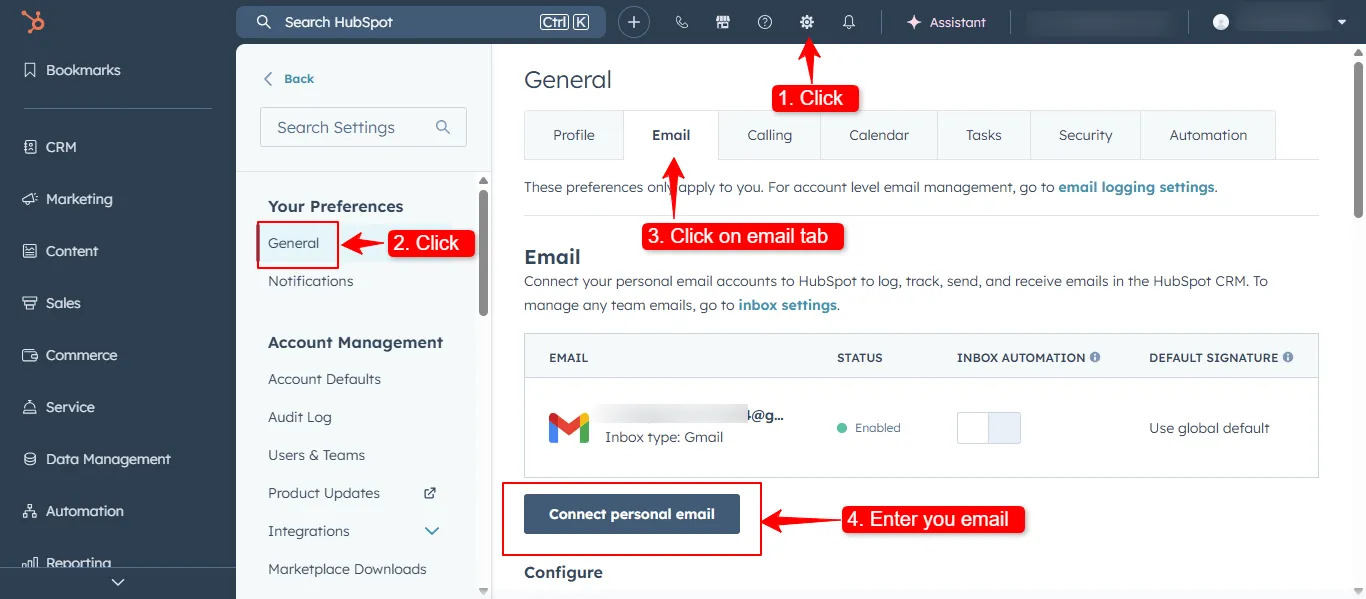
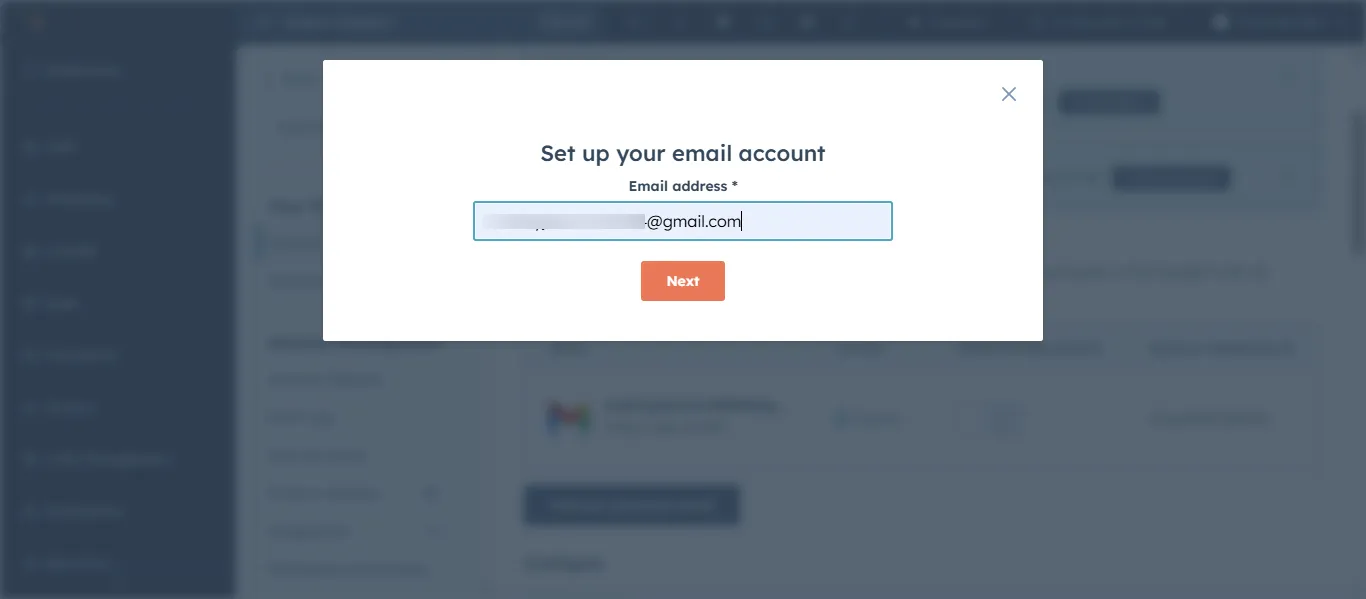
  1. In HubSpot, go to Settings > General > Email/Integrations > Connect Personal Email > Select Gmail.
    HubSpot Settings - Connect Personal Email to Gmail integrationHubSpot Gmail personal email connection setup screen
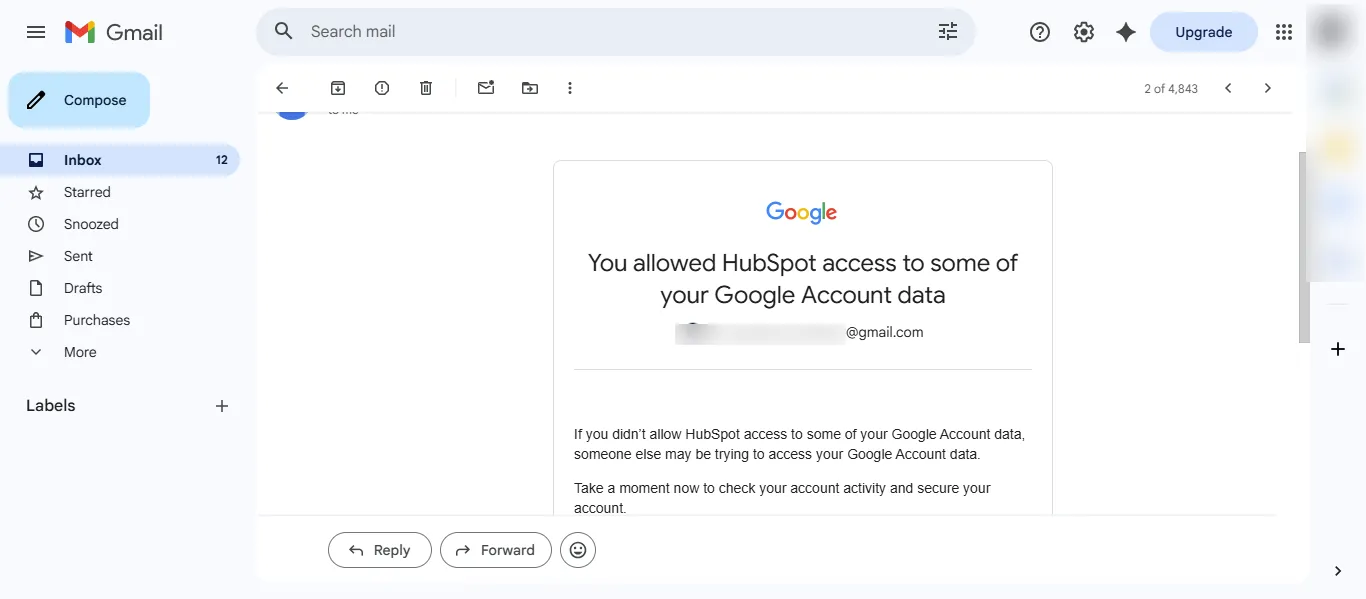
  2. Authorize access; HubSpot will verify your inbox.
    Authorize HubSpot access to Gmail Google account permissions
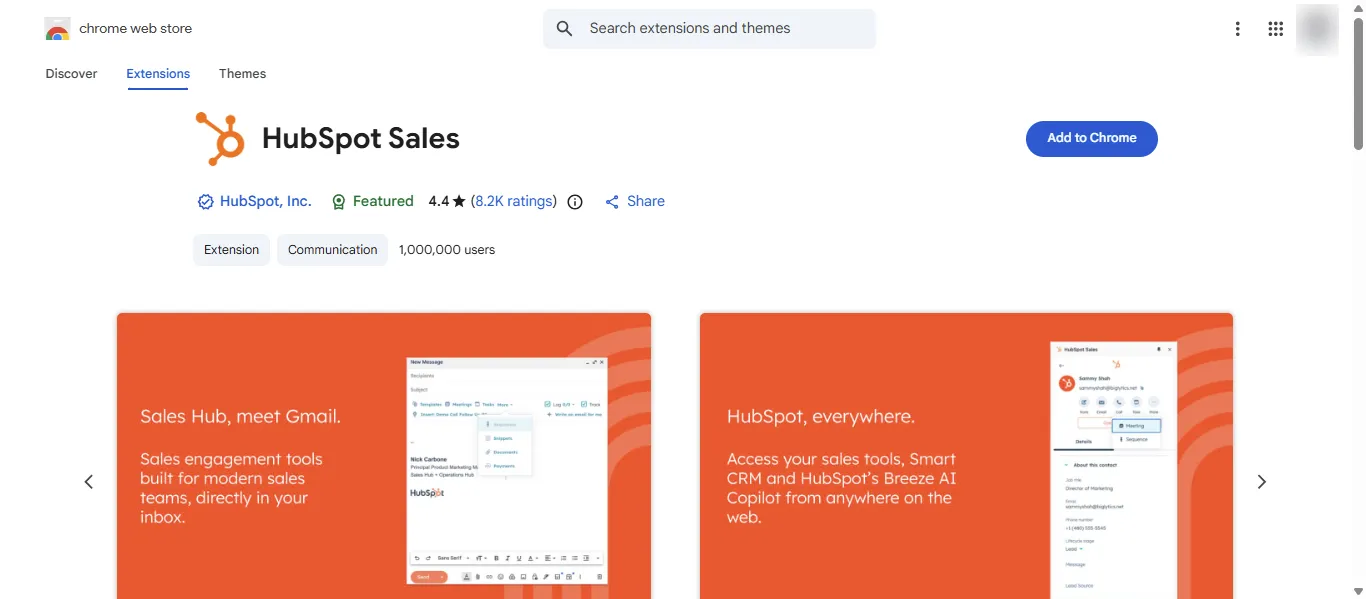
  3. Install HubSpot Sales Chrome extension from Chrome Web Store.
    HubSpot Sales Chrome extension install from Chrome Web Store
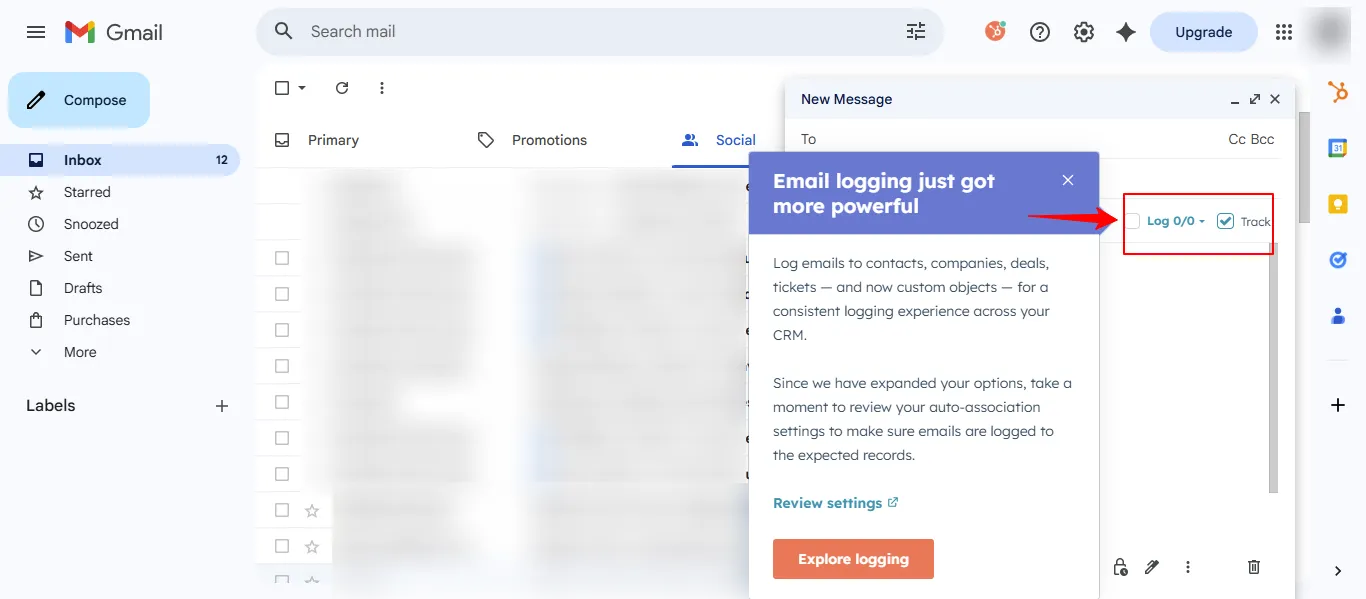
  4. In Gmail compose, check “Log” and “Track” in the HubSpot sidebar before sending.
    Gmail compose window with HubSpot Log and Track options enabled
  5. View activity in contact timeline: opens show as notifications; logged emails appear chronologically.

Step-by-Step Setup for Outlook

  1. Settings > General > Email/Integrations > Connect Personal Email > Select Outlook/Office 365.
  2. Grant permissions; test connection.
  3. Install HubSpot Sales add-in from Microsoft AppSource (desktop/web).
  4. In Outlook compose, toggle Log and Track in the HubSpot pane.
  5. Access full history and metrics in HubSpot contact/activity timelines.

Troubleshooting: Emails Not Logging or Tracking

  • Not Tracking Opens/Clicks: Switch to HTML (not plain text); disable VPN/ad blockers; reauthorize extension. Test send to your preferred mail ID.
  • Extension Missing: Reinstall from store/AppSource; clear browser cache; check HubSpot admin defaults in Settings > Objects > Activities.
  • Not Logging: Ensure “Log all email” enabled; verify contact association; retroactively log via CRM tools.
  • Replies Not Auto-Logging: Update to latest extension; enable threaded logging in settings.

Advanced Tips for 2026

  • Set default logging for all emails in HubSpot settings.
  • Use sequences (Pro users) for automated tracked outreach.
  • Review notifications: 3+ opens signal high interest – follow up immediately.
  • Log attachments automatically; personalize with dynamic tokens.
  • Monitor in timelines: filter by opens, clicks, replies for engagement scoring.

Did you know you can also log LinkedIn messages inside Hubspot?

Yes, you can log LinkedIn messages inside HubSpot—but not natively out-of-the-box; you typically need an integration or a third-party tool to do it properly.

How it works in practice

  • HubSpot does not automatically log LinkedIn private messages by default, because LinkedIn restricts direct access to DMs and InMail.
  • Instead, many teams use Chrome extensions or automation tools (for example LeadCRM, hublead or similar other tools) that sync LinkedIn conversations as activities or notes on a contact’s timeline in HubSpot.

Common ways to log LinkedIn messages

  • One-click sync tools: Install a LinkedIn-to-HubSpot extension; then, inside a LinkedIn message thread, click a “Sync” button to push that conversation into HubSpot as an activity or note.
  • Automated sync for Sales Navigator: Some advanced setups (often via Sales Navigator + HubSpot integrations) can log InMails and related activities into HubSpot for qualified contacts, though this requires specific HubSpot and LinkedIn plans.

What you should clarify internally

  • Make clear in your answer whether you are talking about manual logging (copy-pasting notes) vs. automated tools, and which tool you use (e.g., “Using Hublead, we can log LinkedIn messages as activities in HubSpot with one click”)
  • Emphasize that this gives your sales/marketing team a single view of all touchpoints (email, calls, LinkedIn) on each contact record, improving follow-up and reporting.

Best Practices

Always log sales emails to maintain CRM accuracy. Track every outreach for data-driven decisions. Personalize subject lines to boost opens. Avoid spammy sends to protect deliverability. Use insights like reply rates to refine cadences.

comment icon

Frequently asked questions (FAQ)

Yes, auto-logs in threads with extension enabled.

Check connection, extension, and defaults.

Yes, with new anti-blocking tech.

Collaboration