Frustrated with HubSpot LinkedIn Sync? You're Not Alone.
It’s 9:00 AM on a Tuesday. You have a list of 50 high-intent prospects. You’ve been chatting with them on LinkedIn, building rapport. You switch over to HubSpot to check your pipeline visibility.
Nothing is there.
No messages logged. No new contacts created. Just a spinning wheel or a cryptic error message telling you your integration is “suspended.”
If this sounds familiar, you are part of the massive cohort of HubSpot users who experience friction with the native LinkedIn integration. A quick search of the HubSpot Community reveals the scale of the challenge. Threads regarding “Subscription not found” errors have thousands of views, with users reporting that even after paying for expensive licenses, the connection doesn’t behave as expected.
“I subscribe to LinkedIn Sales Navigator, my fees are up to date and the account is active, but on the contacts and company pages it’s asking me to upgrade.” — Real User Complaint from Hubspot community
The hard truth? HubSpot’s native integration is powerful, but it is designed primarily for Enterprise teams.
The biggest hurdle isn’t a bug—it’s the “Double Paywall.” Most users don’t realize that to get a seamless sync, you don’t just need a higher LinkedIn plan—you often need a higher HubSpot plan too.
In this guide, we are going to help you navigate this. We will cover:
- The 7 most common sync failures (and the error codes to look for).
- 7 step-by-step manual fixes to get the native sync running again.
- The Scalable Alternative: A free Chrome extension (LeadCRM) that brings enterprise-grade syncing to LinkedIn Premium and HubSpot Starter users—allowing you to scale without the massive price tag.
Let’s get your data back.
The 7 Most Common HubSpot LinkedIn Sync Problems (With Screenshots)
Before we fix it, we have to diagnose it. Based on a deep dive into the HubSpot Community Forums and official documentation in late 2024 and 2026, these are the top issues plaguing users right now.
Problem 1: The "Subscription Not Found" Error
Severity: Critical (Blocker)
This is the number one complaint. You try to connect the integration, and you are hit with:
Error: “Your LinkedIn subscription does not support this integration. Please upgrade to Sales Navigator Advanced Plus.”
The Symptoms:
- You have a paid Sales Navigator Core (Professional) account.
- You cannot toggle the “Sync” switch in HubSpot settings.
- The integration settings page shows a “Locked” icon.
The Reality: HubSpot’s native deep sync is optimized for the highest tier of LinkedIn. It does not support the standard Sales Navigator Core (approx. $99/mo) for CRM syncing. The widget will only function for members currently subscribed to Sales Navigator Advanced Plus (formerly Team/Enterprise).
If you are on the standard Sales Nav plan, the native integration simply isn’t designed to connect with your tier.

Problem 2: The HubSpot Plan Barrier (Feature Unavailable)
Severity: Critical
The Symptoms:
- You upgraded your LinkedIn plan, but the sync still won’t activate.
- You see a message inside HubSpot: “This feature requires Sales Hub Professional or Enterprise.”
The Reality: This is the other half of the “Double Paywall.” Even if you pay LinkedIn $160/month for their top tier, HubSpot also reserves the native integration features for their Sales Hub Professional ($90+/seat/mo) or Enterprise tiers.
If you are on HubSpot Free or Sales Hub Starter, the native integration offers limited functionality.
Problem 3: LinkedIn Messages Not Appearing in HubSpot
Severity: High
The Symptoms:
- You are chatting with a prospect on LinkedIn.
- You refresh the HubSpot contact record, but the “Activity” timeline is empty.
- Only “InMails” seem to log, while standard replies vanish.
The Cause: The native API distinguishes between “InMail” and “Messages.” Often, HubSpot will log the initial InMail because it is a paid asset, but once the prospect replies and it becomes a standard conversation, the sync may stop if you do not have the “Data Sync” feature enabled (which, again, requires the highest Sales Nav tier).
Problem 4: The "CRM Sync Failed" & Stalled Syncs
Severity: Medium
The Symptoms:
- You click “Sync to CRM” in Sales Navigator.
- The button turns into a spinning wheel.
- It spins for 5 minutes. Then it stops, and the contact is still not in HubSpot.
The Cause: This is frequently reported by users switching browsers (e.g., Chrome to Edge) or dealing with cache conflicts. The handshake between the browser extension and the CRM times out.
Problem 5: Duplicate Contact Creation
Severity: Medium
The Symptoms:
- You have a contact “John Smith” in HubSpot with email [email protected].
- You sync him from LinkedIn.
- Instead of updating the existing record, HubSpot creates “John Smith (1)” with no email address, just a LinkedIn profile link.
The Cause: HubSpot’s native de-duplication relies heavily on exact email matches. Since LinkedIn profiles often use personal emails (Gmail/Yahoo) and your CRM uses work emails, the native sync assumes they are different people.
Problem 6: "Insufficient Permissions" or "Scope Missing"
Severity: Critical
The Symptoms:
- You connect the integration, but get a 403 Forbidden error when trying to view LinkedIn data inside HubSpot.
The Cause: This occurs when the user who authorized the integration (usually an Admin) doesn’t have a seat on the Sales Navigator contract, or the OAuth token has expired.
Problem 7: Bulk Import Failures
Severity: High (Efficiency Killer)
The Symptoms:
- You build a lead list of 50 prospects in Sales Navigator.
- You want to push them all to HubSpot.
- The Reality: You can’t. The native integration does not support bulk exports. You have to click “Sync” one by one.
Official Confirmation: HubSpot’s own community managers have confirmed in forums that bulk import via the native integration is not supported. You must create contacts manually or use third-party tools.
Why HubSpot's Native LinkedIn Sync Fails Most Users [Deep Dive]
Why is this so difficult? It’s not that the system is broken; it’s that it is tiered for Enterprise.
Both LinkedIn and HubSpot have built an incredible ecosystem for large corporations. They use the “Sync” feature as a premium capability for their top-tier plans.
The Cost of Native Sync (The $10k Problem)
To get the “official” sync working seamlessly, you generally need to be on the upper tiers of both platforms.
- LinkedIn Requirement: Sales Navigator Advanced Plus (~$160/user/mo).
- HubSpot Requirement: Sales Hub Professional (~$90/user/mo minimum, often higher).
Total Cost for a 5-Person Team:
- LinkedIn Cost: $9,600/yr
- HubSpot Cost: $5,400/yr
- Total: $15,000/year just to sync messages.
The "Growth" Gap
What if you are a solopreneur, a small agency, or a lean startup?
- You might use LinkedIn Premium ($60/mo).
- You might use HubSpot Starter ($15/mo).
- Result: The native integration offers you limited functionality.
This is where the native sync leaves 80% of the market behind. It is built for Enterprise budgets, not for growth teams.
7 Step-by-Step Fixes for HubSpot LinkedIn Sync Issues
If you are committed to using the native integration (and have the required plans), here are the manual fixes that resolve the most common errors.
Fix 1: The Nuclear Reconnect Method
Best for: Stalled syncs, “Scope Missing” errors.
Don’t just toggle it off and on. You need to clear the handshake completely.
- In HubSpot: Go to Settings > Integrations > Connected Apps. Uninstall LinkedIn Sales Navigator.
- In LinkedIn: Go to Settings > Privacy > Permitted Services. Remove HubSpot.
- Clear Cache: Clear your Chrome browser cache (Cookies and Cached images).
- Reconnect: Go back to HubSpot and reinstall the app.
- Log in: Ensure you are logged into LinkedIn in the same browser window before clicking “Connect.”
Fix 2: The "Private Browsing" Test
Best for: Spinning wheels, buttons not clicking.
Extensions like AdBlockers or Ghostery often block the scripts HubSpot uses to talk to LinkedIn.
- Open an Incognito/Private window.
- Log into HubSpot and LinkedIn.
- Try the sync.
If it works: One of your other Chrome extensions is the culprit. Disable them one by one to find the conflict.
Fix 3: The Email Match Protocol
Best for: Fixing Duplicates.
Before hitting “Sync” on LinkedIn:
- Check the LinkedIn contact’s “Contact Info” tab.
- If their personal email is visible, search that email in HubSpot first.
- If a record exists, add their personal email as a “Secondary Email” in HubSpot.
- Then hit Sync. This forces HubSpot to merge the data rather than duplicate it.
Fix 4: Verify Sales Navigator Seat Assignment
Best for: “Subscription Not Found” errors.
Even if you paid for Advanced Plus, the seat might not be assigned to your email.
- Have your LinkedIn Admin go to the Sales Navigator Admin Dashboard.
- Verify your email status says “Active” and the license type specifically says “Advanced Plus”.
- Crucial: The email address you use for LinkedIn MUST match the email address you use for HubSpot. If they differ, the sync fails.
Fix 5: Resetting Permissions (The 403 Error Fix)
If you see “Insufficient Permissions,” your HubSpot user role may be too low.
- Go to HubSpot Settings > Users & Teams.
- Ensure you have “Edit” access for Contacts and Companies.
- Ensure “App Marketplace Access” is toggled ON.
Fix 6: The "InMail Only" Workaround
Best for: Missing messages.
If standard messages aren’t syncing, stop using the standard LinkedIn inbox.
- Strict Rule: Only communicate via the Sales Navigator Inbox.
- Native sync does not listen to the free LinkedIn message API. It only listens to the Sales Nav API. If you switch back to the regular LinkedIn UI to chat, that data is lost to HubSpot.
Fix 7: Manual Field Mapping
Best for: Missing Job Titles/Companies.
- Go to HubSpot Settings > Integrations > LinkedIn Sales Navigator.
- Click “Field Mappings.”
- Ensure “Job Title” is mapped to “Job Title” (sometimes it defaults to nothing).
- Turn on “Overwrite” if you want LinkedIn data to be the source of truth.
The Scalable Alternative: LeadCRM Chrome Extension
If you read the section above about the “$15,000/year cost” and realized it doesn’t fit your budget, there is a smarter way to scale.
Enter LeadCRM.
LeadCRM is a Chrome extension designed to democratize the LinkedIn-HubSpot sync. It offers similar (and often more flexible) functionality without the massive price tag.
It works with:
- LinkedIn Plans: Free, Premium, Sales Nav Core, Sales Nav Advanced.
- HubSpot Plans: Free, Starter, Professional, Enterprise.
The "Standard Inbox" Advantage
Here is a strategic insight: Sales Navigator Inboxes are temporary silos. If you stop paying for Sales Navigator, you lose access to those message threads.
LeadCRM focuses on syncing your Standard LinkedIn Inbox.
- Why this matters: When you connect with a prospect, the conversation naturally moves to the standard inbox. This is the permanent record of your relationship.
- The Benefit: You own this data. Even if you cancel Sales Navigator next year, the conversations synced by LeadCRM remain in HubSpot forever.
LeadCRM vs. HubSpot Native: Feature Showdown
This table exposes why LeadCRM is the “No-Brainer” choice for growing teams.
| Feature | HubSpot Native Integration | LeadCRM Extension |
|---|---|---|
| Required LinkedIn Plan | Sales Nav Advanced Plus ($160+/mo) | Any Plan (Free, Premium, or Core) |
| Required HubSpot Plan | Sales Hub Pro / Enterprise ($90+/mo) | Any Plan (Free, Starter, Pro) |
| Inbox Sync | Sales Nav Inbox (Siloed Data) | Standard Inbox (Permanent Data) |
| Email Enrichment | ❌ No (Manual entry only) | ✅ Yes (Finds verified work emails) |
| Bulk Export | ❌ No (One by one only) | ✅ Yes (Export search lists to HubSpot) |
| Contact Duplication | High (Matches email only) | ✅ Smart Dedupe (Matches Name, Company, & URL) |
| Setup Time | 30+ Minutes (Admin required) | 2 Minutes (No Admin required) |
| Total Monthly Cost | ~$250/user/mo (Combined) | Free / Affordable |
Why This Matters for LinkedIn Premium Users
If you are using LinkedIn Premium Career or Business ($30-$60/mo), HubSpot’s native settings will tell you that you cannot sync to the CRM.
LeadCRM changes that. You can have full CRM syncing capabilities—creating contacts, logging messages, and tracking deals—without ever upgrading to the Sales Navigator Advanced version. It allows you to scale your sales process easier, using the tools you already have.
Complete Setup Checklist: HubSpot + LeadCRM in 5 Minutes
Ready to simplify your workflow? Here is how to set up the robust sync in under 5 minutes.
Step 1: Sign Up for Your Free LeadCRM Account
Getting started is fast and flexible. You can sign up using your existing Google or Microsoft accounts for single-click access, or use the traditional email and password method.
- Single-Click Signup (Google/Microsoft):
- On the LeadCRM signup page, choose “Sign up with Google” or “Sign up with Microsoft”.
- Follow the prompts to authorize your account. This is the fastest way to get started.
- Email and Password Signup:
- Choose to sign up with your email.
- Fill in your name, company email address, and create a secure password.
- Complete the registration to access your free plan.
You can sign up either on the Backend here: Signup or directly through the LeadCRM Chrome extension.
Step 2: Log in to the Chrome Extension
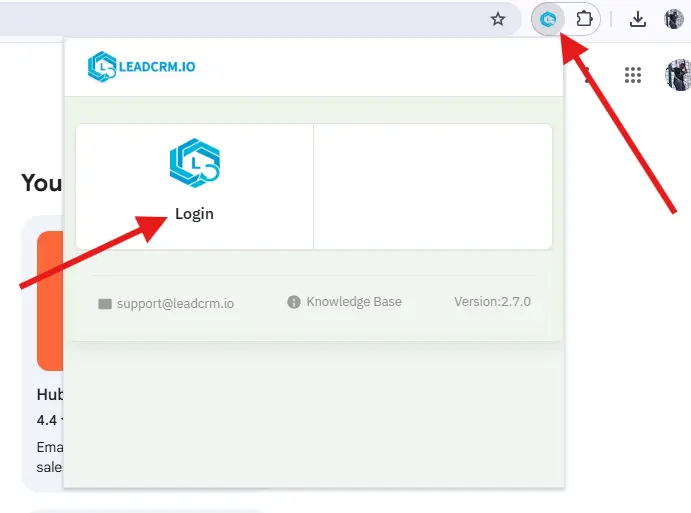
The LeadCRM Chrome extension is your primary tool for capturing leads from LinkedIn. After signing up, you’ll need to log in to the extension to activate its features:
- Click the LeadCRM icon in your browser’s toolbar.

- Log in using the same method you used to sign up (Google, Microsoft, or email/password).
- Once logged in, the extension is ready to sync contact data from LinkedIn to your CRM.
Step 3: Connect Your CRM
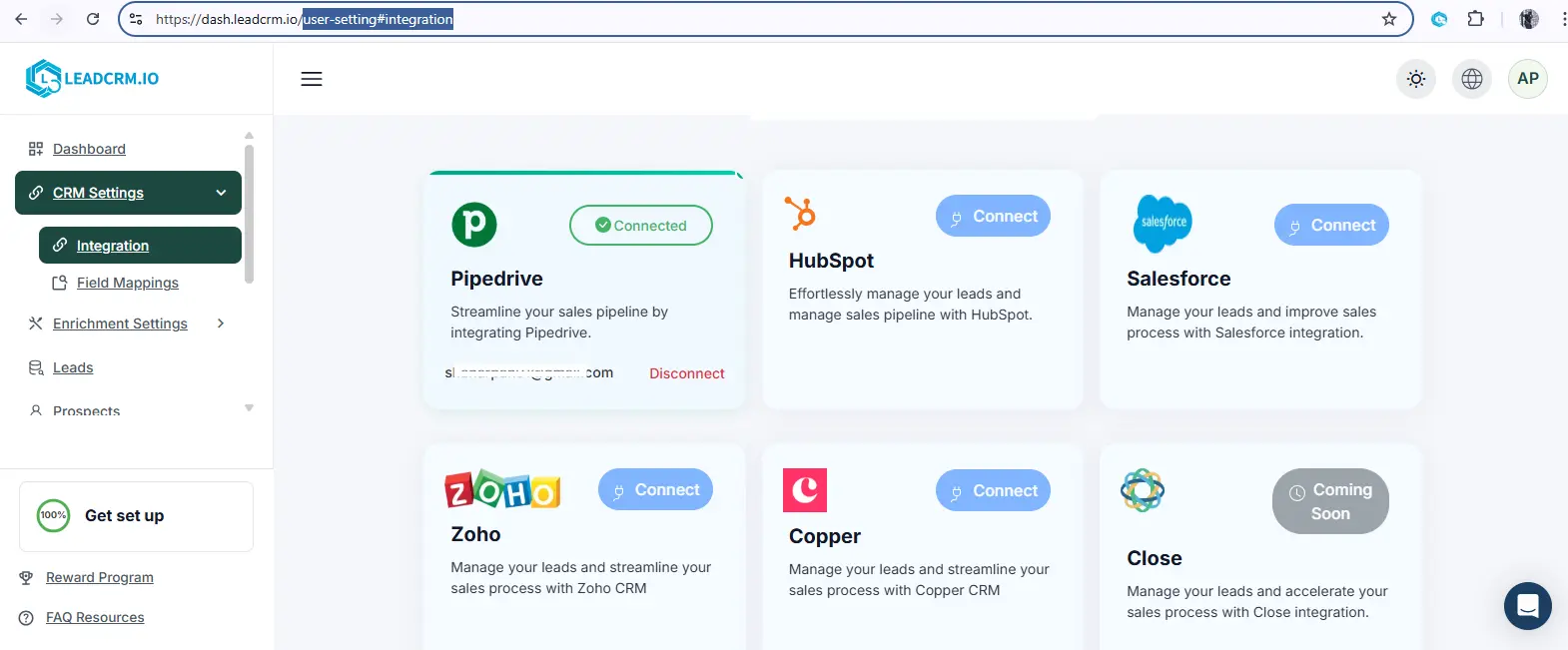
Connecting your CRM is a critical step that enables the seamless flow of data. LeadCRM offers native, bi-directional integrations with several popular CRM platforms, including HubSpot, Salesforce, Zoho, Copper, Gohighlevel, Google Sheets, Close.com and Pipedrive.
To connect your CRM:
- Open the LeadCRM Dashboard ➡️ CRM Settings ➡️ Integrations

- Select your CRM from the list of supported platforms.
- You will be prompted to log in to your CRM account and authorize the connection.
LeadCRM provides detailed, step-by-step guides for each supported CRM on our help portal, few are mentioned here for quick refrence.
Pipedrive Guide
HubSpot Guide
Zoho Guide
Copper Guide
Step 4: Set Up Field Mapping
Field mapping gives you complete control over how information is saved in your CRM. It allows you to match LinkedIn profile fields (like “Job Title” or “Company”) to the corresponding fields in your CRM records. This ensures your data remains clean, consistent, and organized according to your workflow.

Here’s how it works:
- Navigate to Dashboard ➡️CRM Settings ➡️Field Mappings (Here)
- You’ll see a list of LinkedIn data points with dropdown menus next to them.
- For each data point, select the CRM field where you want that information to be stored.
Once you save your preferences, LeadCRM will automatically apply these rules every time a new contact is added.
Step 5: Add a Contact from LinkedIn
Now for the exciting part—capturing your first lead!

- Go to LinkedIn and open the profile of a potential lead.
- You will notice the LeadCRM user interface integrated directly onto the page.
- Click the Add as Contact button within the LeadCRM panel.
That’s it! LeadCRM will automatically capture the available profile information and create a new contact in your CRM, saving you from tedious manual data entry. You can then navigate to your CRM and see the new record neatly populated.
Once Data is Synced UI will change and it will show data from your CRM like this.

Step 6: Enrich Your Data
LeadCRM doesn’t just capture data; it enriches it to provide a more complete picture of your prospects. This can happen automatically when you add a contact or as a separate action for existing contacts. Our free plan provides you with monthly credits to find verified emails and phone numbers.

How it looks:
- Before Enrichment: A contact profile might only contain a name, job title, and company.
- After Enrichment: The same profile can be updated with verified work emails, phone numbers, and more, sourced from our database of over 700 million B2B contacts.
This enriched data is invaluable for personalizing your outreach and improving your chances of conversion. You’ll see this new information directly in your CRM, giving your sales team the actionable intelligence they need to engage effectively.
FAQ: Your Questions, Answered
Is LeadCRM safe to use?
Yes. LeadCRM is designed to work alongside your daily workflow. It acts as a productivity assistant in your browser, helping you log data you are already viewing, rather than aggressively scraping servers in the background.
I have HubSpot Free. Can I still use LeadCRM?
Yes! This is our biggest advantage. While the native integration requires you to upgrade to HubSpot Sales Hub Pro, LeadCRM gives you full sync capabilities on the Free and Starter plans.
Does LeadCRM sync my Sales Navigator Inbox?
No, LeadCRM focuses on syncing your Standard LinkedIn Inbox. This is a strategic choice: Sales Nav inboxes are temporary silos that vanish if you downgrade your plan. By syncing the Standard Inbox, we ensure you capture the permanent record of your business relationships.
Why do messages often fail to log with the official HubSpot integration?
The official integration often disconnects due to API timeouts or fails to track conversations once they move from “InMail” to standard messages. LeadCRM solves this by syncing the viewable chat history directly from your browser, ensuring no message is lost regardless of the thread type.
Conclusion: Stop Wasting Hours on Broken Native Sync
You have two choices today.
Choice A: Continue wrestling with the native integration. Upgrade to Sales Navigator Advanced Plus ($160+/mo) AND HubSpot Sales Hub Professional ($90+/mo), spend hours with support, and accept that you are paying a premium for a fragile connection.
Choice B: Install a tool built for the modern sales stack.
Sales is hard enough without fighting your tech stack. You need your CRM to reflect reality, and you need your workflow to be fast. LeadCRM gives you the bulk export, email finding, and reliable Standard Inbox syncing that works on the plans you already have.
Don’t let another lead slip through the cracks.
Start your free trial of LeadCRM today. — No credit card required. See your first synced conversation in under 3 minutes.

Article written by
Arpan Shah
Arpan Shah is the Founder at LeadCRM with 13+ years in B2B SaaS and martech. He writes about CRMs, LinkedIn-to-CRM workflows, integrations, lead enrichment, and practical growth playbooks that help teams streamline lead capture and keep CRM data accurate.